




You have an HTML page — maybe Claude, ChatGPT or Gemini wrote it, maybe a designer sent it — and you want it on your WordPress site. WordPress has no "Import HTML" button, and the usual workarounds leave you with a page you can't edit. This guide shows the three ways to do it and walks through four real cases with the free Web2Elementor Site Importer plugin, with the exact screens, prices and times we recorded.
The quick answer
| Method | Is the page editable in WordPress? | Uses your theme, menu and URLs? | Cost |
|---|---|---|---|
| Custom HTML block — paste the code into a block | No. It stays code: to change a word you edit HTML | Inside a normal page | Free |
| Upload the file to your server (FTP or your host's file manager) | No. WordPress doesn't know the page exists | No. It lives outside WordPress | Free |
| Web2Elementor Site Importer — paste or upload the HTML in the plugin | Yes. Real Elementor pages you edit by clicking | Yes. Each page gets its own address and joins your menu | Credits: 14 for the first page, 4 for each extra page |
If you only need a small snippet (a button, an embed), the Custom HTML block is enough. If you want the page to be part of your site and keep editing it, the plugin is the fast way.
Before you start
- A WordPress site. The plugin installs or updates Elementor for you (Elementor Free 4.3 or later is enough).
- The free plugin: download Web2Elementor Site Importer and upload it from your WordPress Plugins screen (Upload Plugin).
- A Web2Elementor account. You can create a free one from inside the plugin ("Create free account": with Google, GitHub or your email).
Case 1: A new website from Claude, then an "About us" page in the same style
Starting point: a fresh WordPress site, with no Elementor and no theme set up.
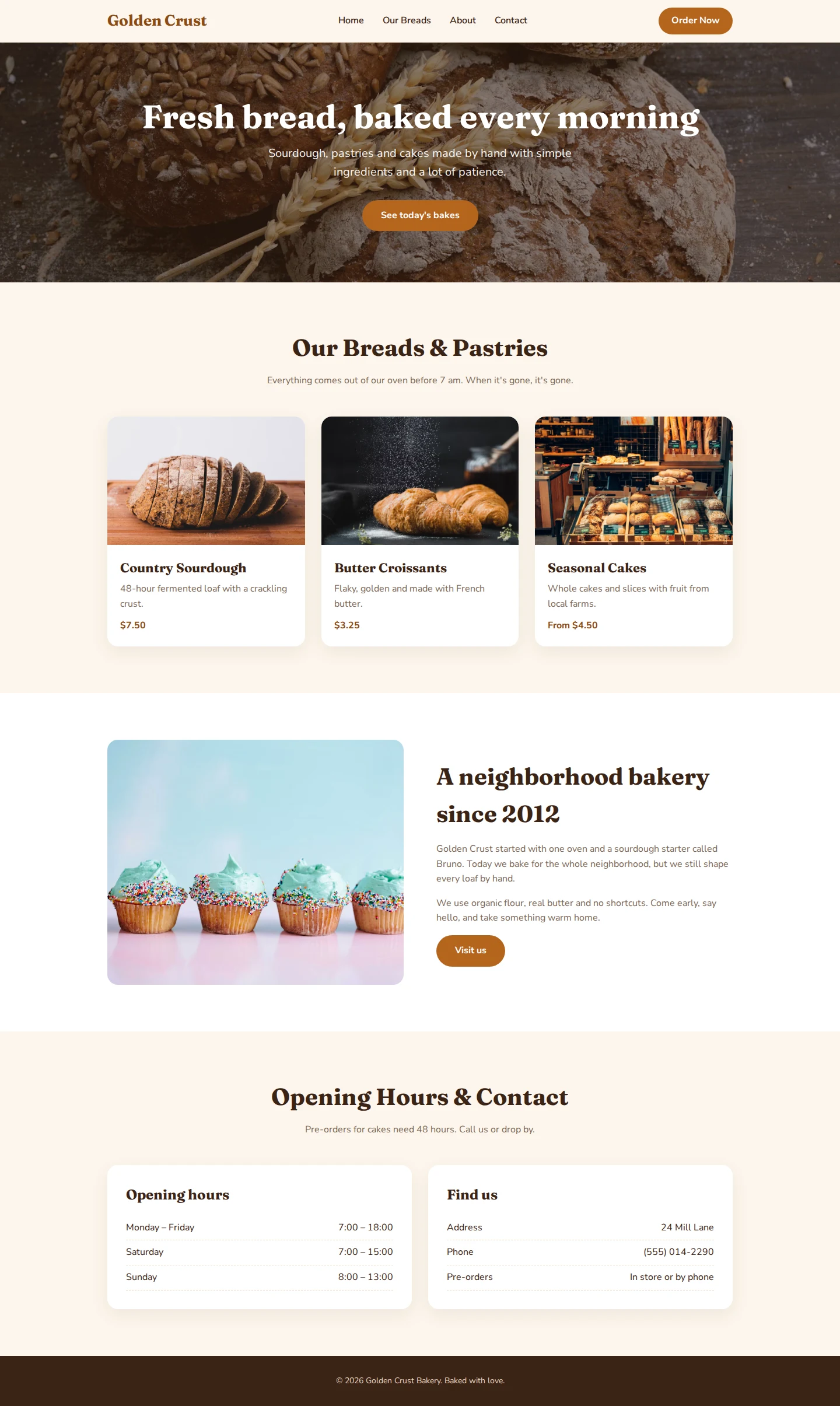
1. Ask Claude for the website. We asked:
Create a one-page website for my bakery, Golden Crust Bakery, in a single HTML file.
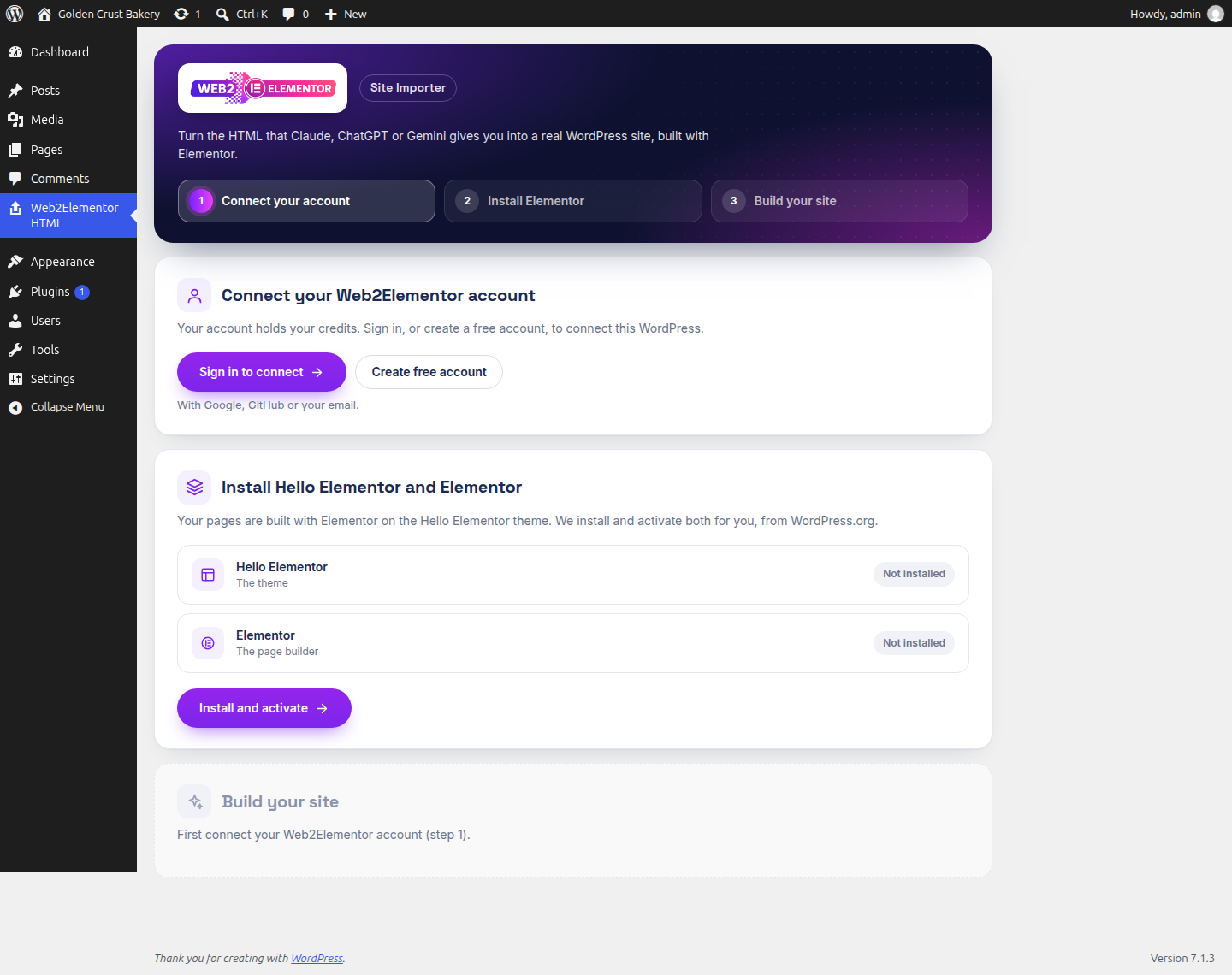
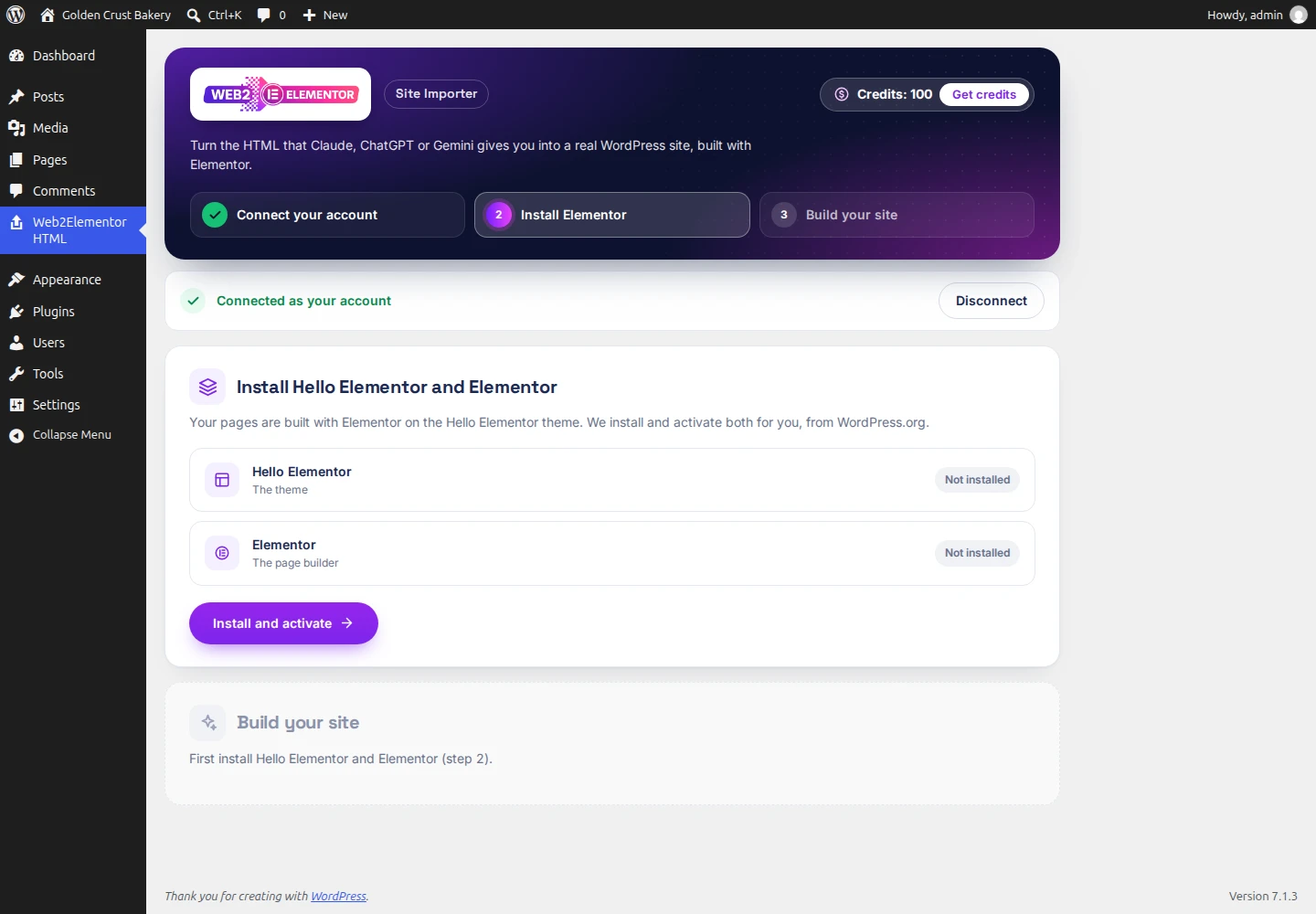
2. Connect your account and install Elementor. Open Web2Elementor HTML in the WordPress menu, click Sign in to connect and approve the code in the tab that opens. Then click Install and activate: the plugin installs the Hello Elementor theme and Elementor. It took about 8 seconds.
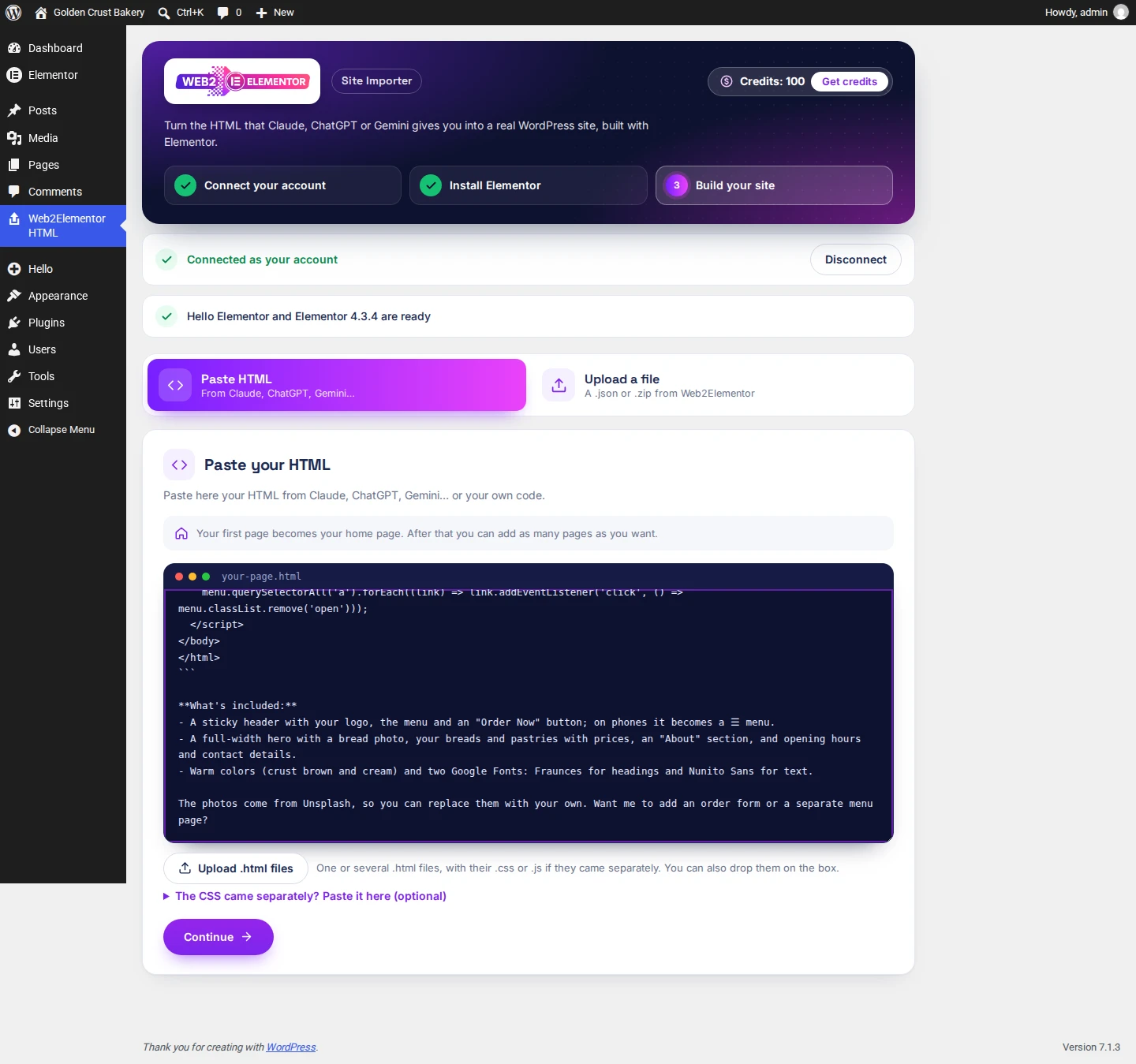
3. Paste the whole answer. In Paste HTML, paste everything Claude wrote: you don't need to copy only the code. The plugin keeps the code blocks and drops the rest ("We kept only the code blocks from what you pasted and dropped the surrounding text."). Click Continue.
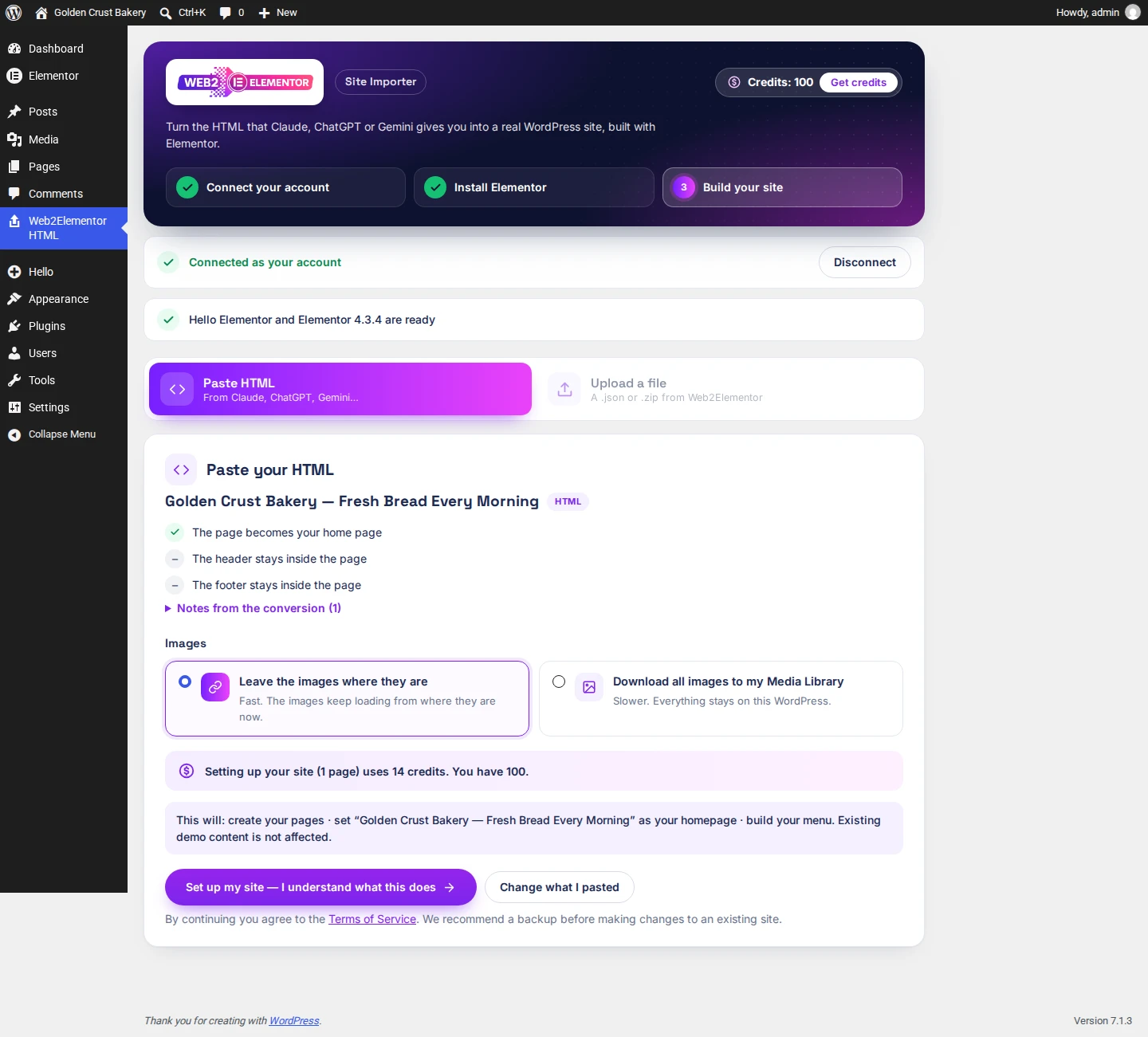
4. Check what will happen. Before anything is charged, the plugin shows a summary:
- the page becomes your home page;
- the price: "Setting up your site (1 page) uses 14 credits";
- what it will do: "create your pages · set … as your homepage · build your menu".
You can also choose whether the images keep loading from where they are or get downloaded to your Media Library. Click Set up my site — I understand what this does.
5. Done in about 12 seconds. "Done. 14 credits used." The bakery page is now your home page, very close to Claude's original on desktop and on mobile, and the ☰ menu opens on phones.

6. Ask Claude for the next page, in the same chat:
Now make me the About us page with the same style
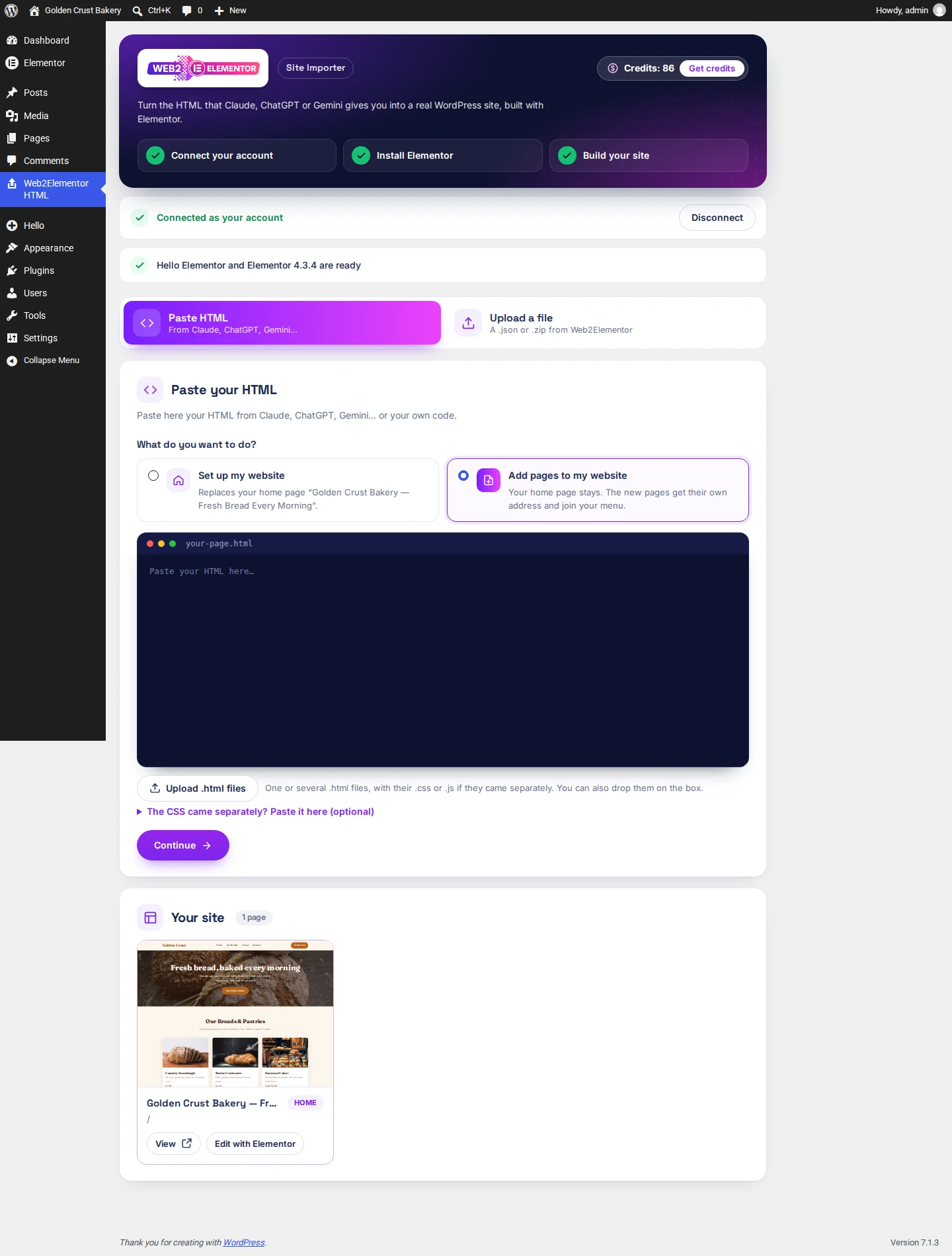
7. Add it as a new page. Back in the plugin, paste the new answer. Now the plugin asks What do you want to do?: choose Add pages to my website ("Your home page stays. The new pages get their own address and join your menu.").
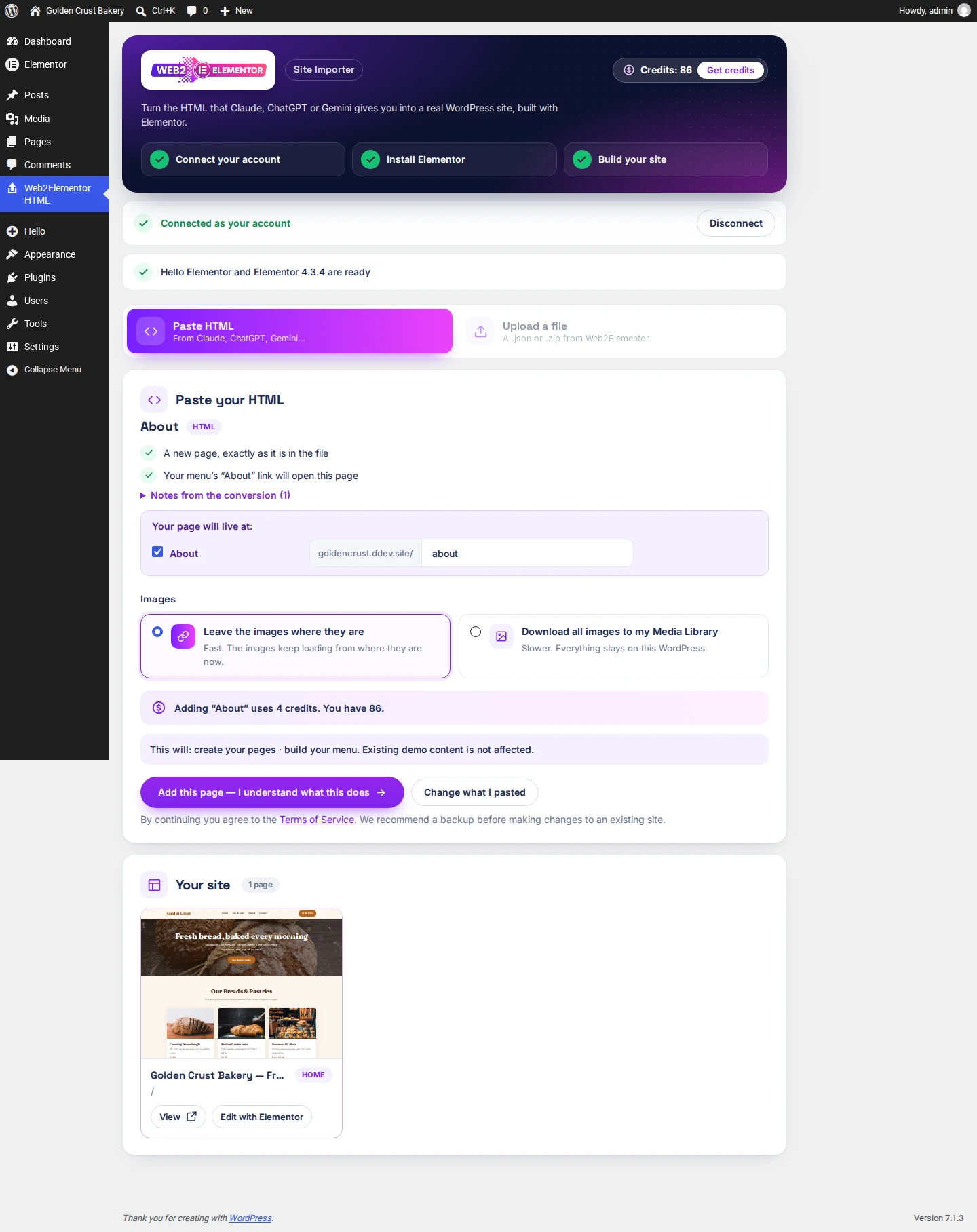
8. Choose its address and check the menu. The plugin proposes an address from the page title (about-us); you can change it (we used about). It also tells you how your menu will change: "Your menu's 'About' link will open this page." The price: "Adding 'About' uses 4 credits."
9. Done. In about 13 seconds the page is live at /about/, and the About link in your home page menu — on desktop and in the ☰ menu — now opens it.
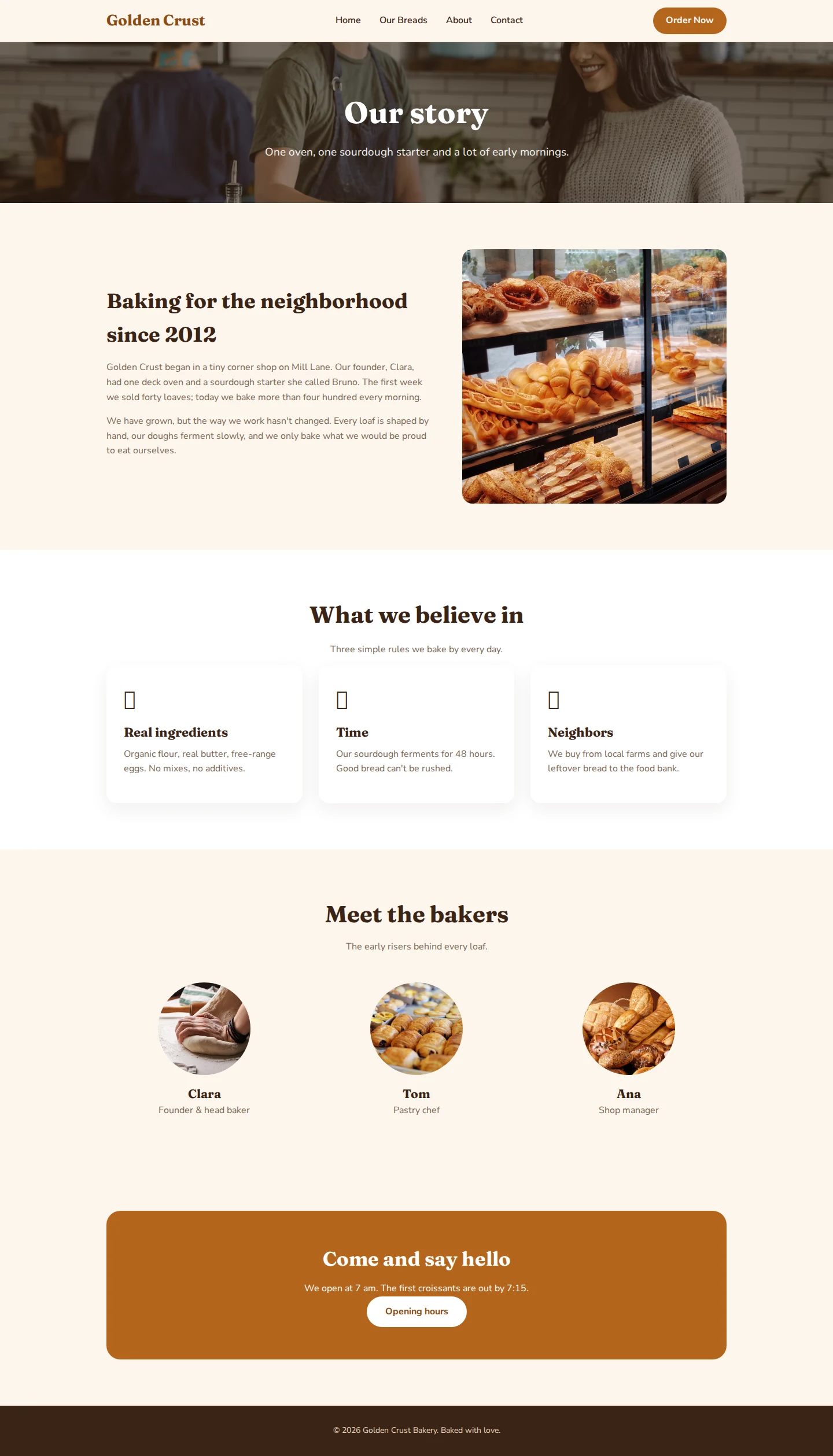

Case 1 in numbers: 14 + 4 = 18 credits for a two-page site, about 25 seconds of setting up. The WordPress demo content is not touched.
Case 2: Add an AI landing page to a site you already have — without touching it
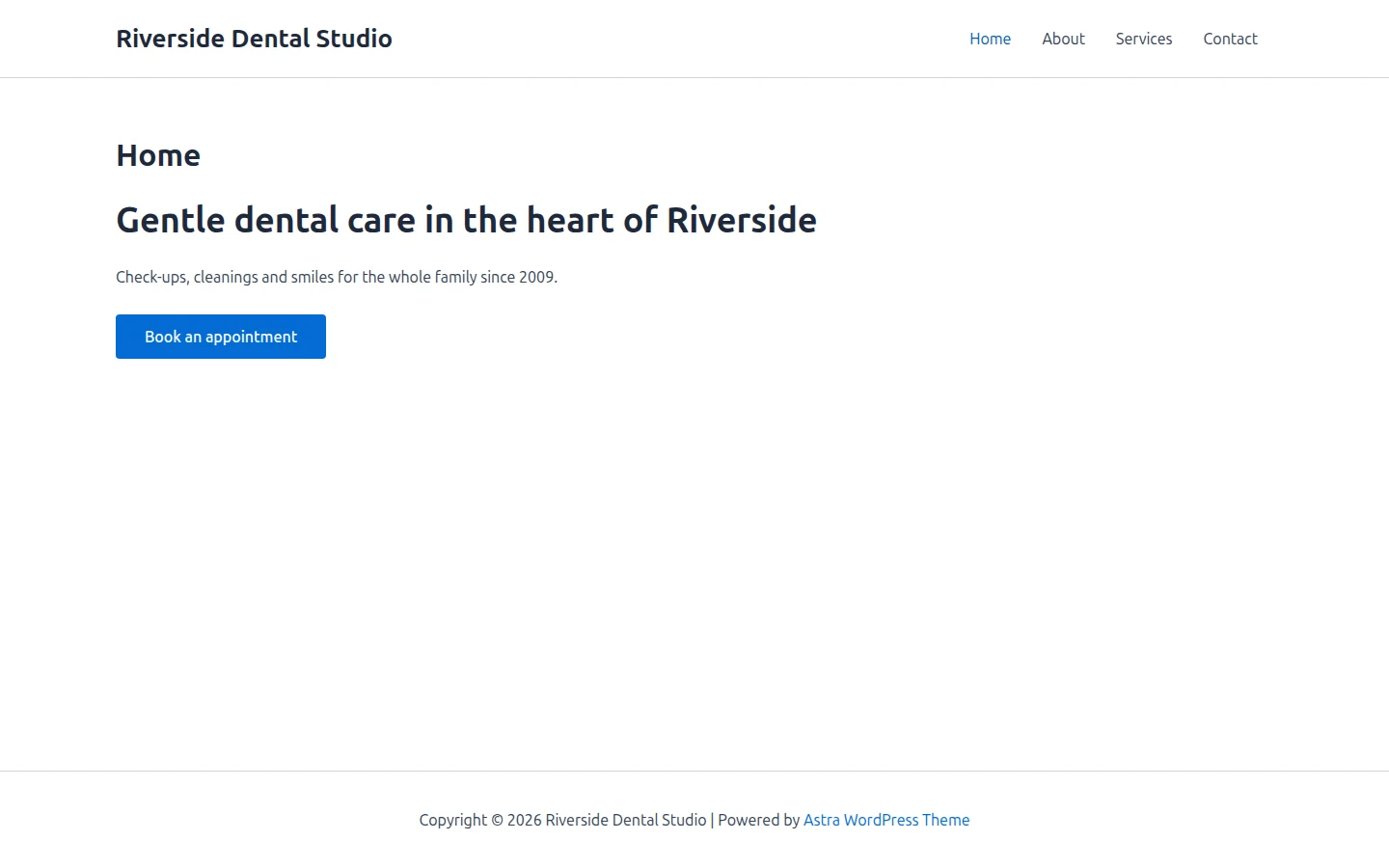
Starting point: a dental clinic site already built with the Astra theme, four pages, a static home page and its own menu.
1. Ask Claude for the landing page:
Create a landing page to promote our new teeth whitening service at Riverside Dental Studio.
2. The plugin notices your site has content. It says: "This site already has content… We won't touch your current theme, pages or menu — your imported pages will be added alongside them." It only installs Elementor; your theme stays as it is.
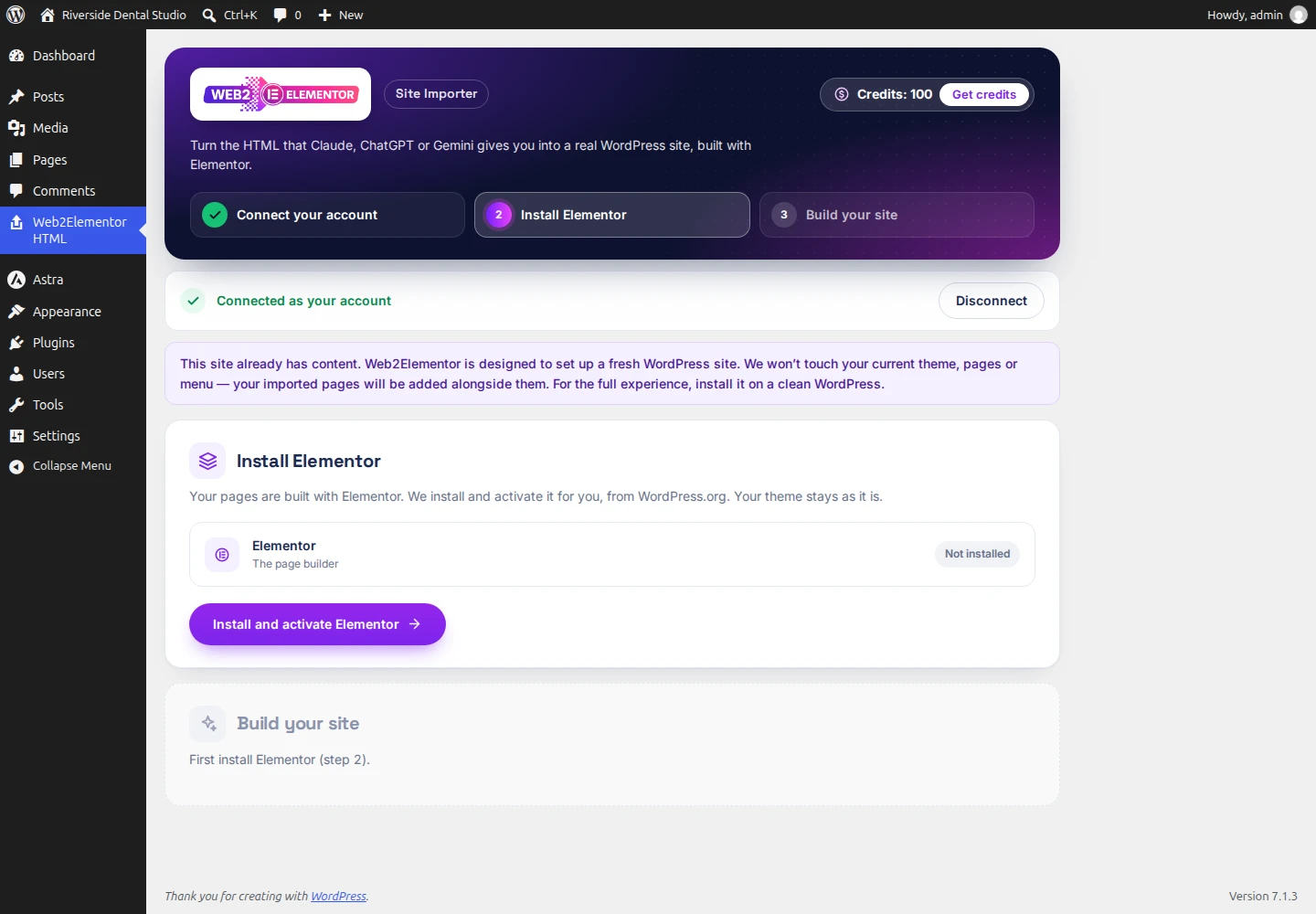
3. Paste the answer. The plugin explains: "Your pages are added to your site, each at its own address. Your homepage, theme and menu stay as they are."
4. Choose the address and accept. It proposed professional-teeth-whitening; we changed it to teeth-whitening. Price: "Adding 'Teeth whitening' uses 4 credits." Summary: "create your imported pages (your theme, pages, menu and homepage stay untouched)." Click Add this page — I understand what this does.
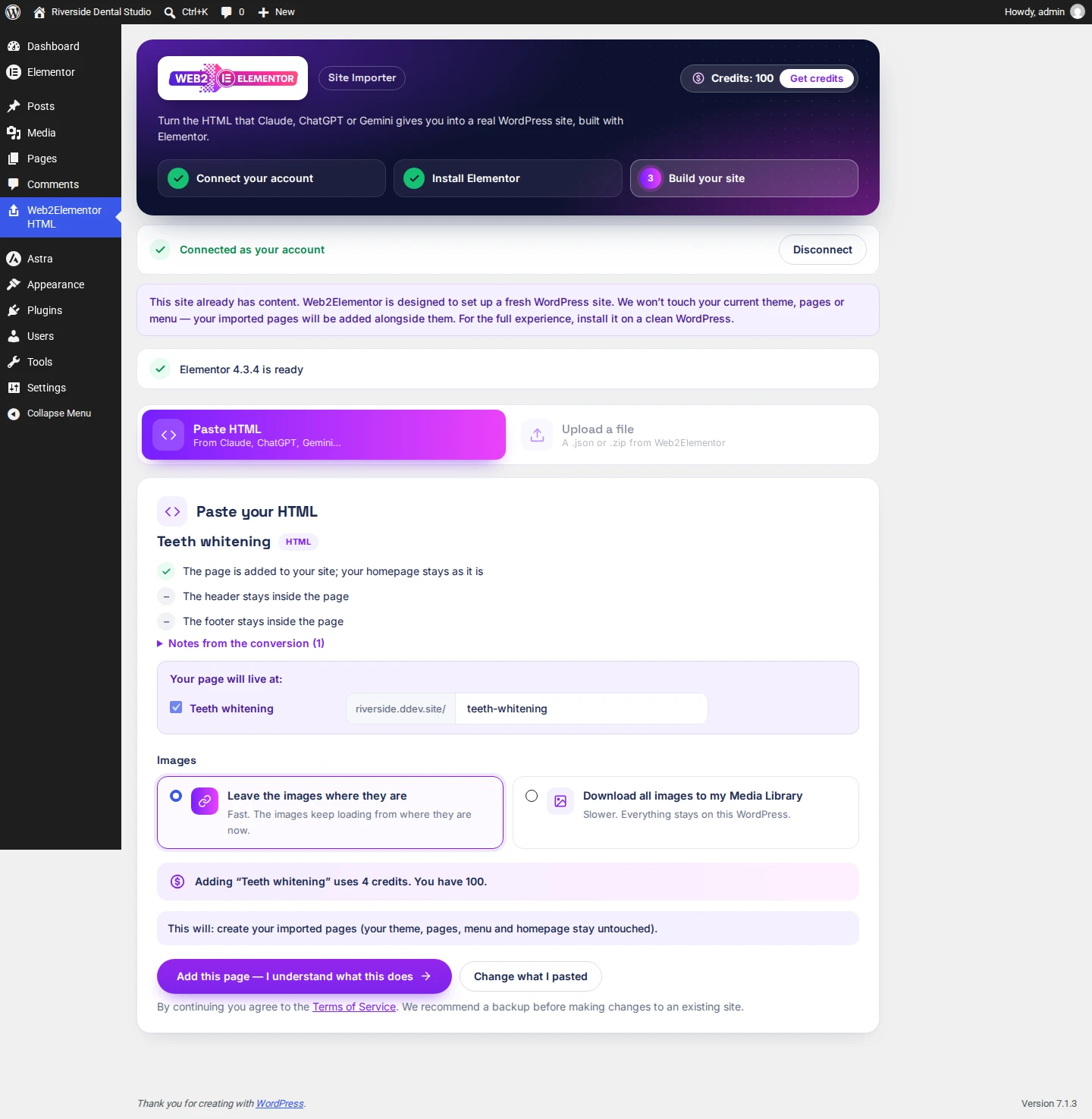
5. Done in about 15 seconds. The landing page is live at /teeth-whitening/, its ☰ opens on phones, and the rest of the site is exactly as it was. We compared the home page before and after, pixel by pixel: identical. Same menu, same pages, same reading settings, same theme.

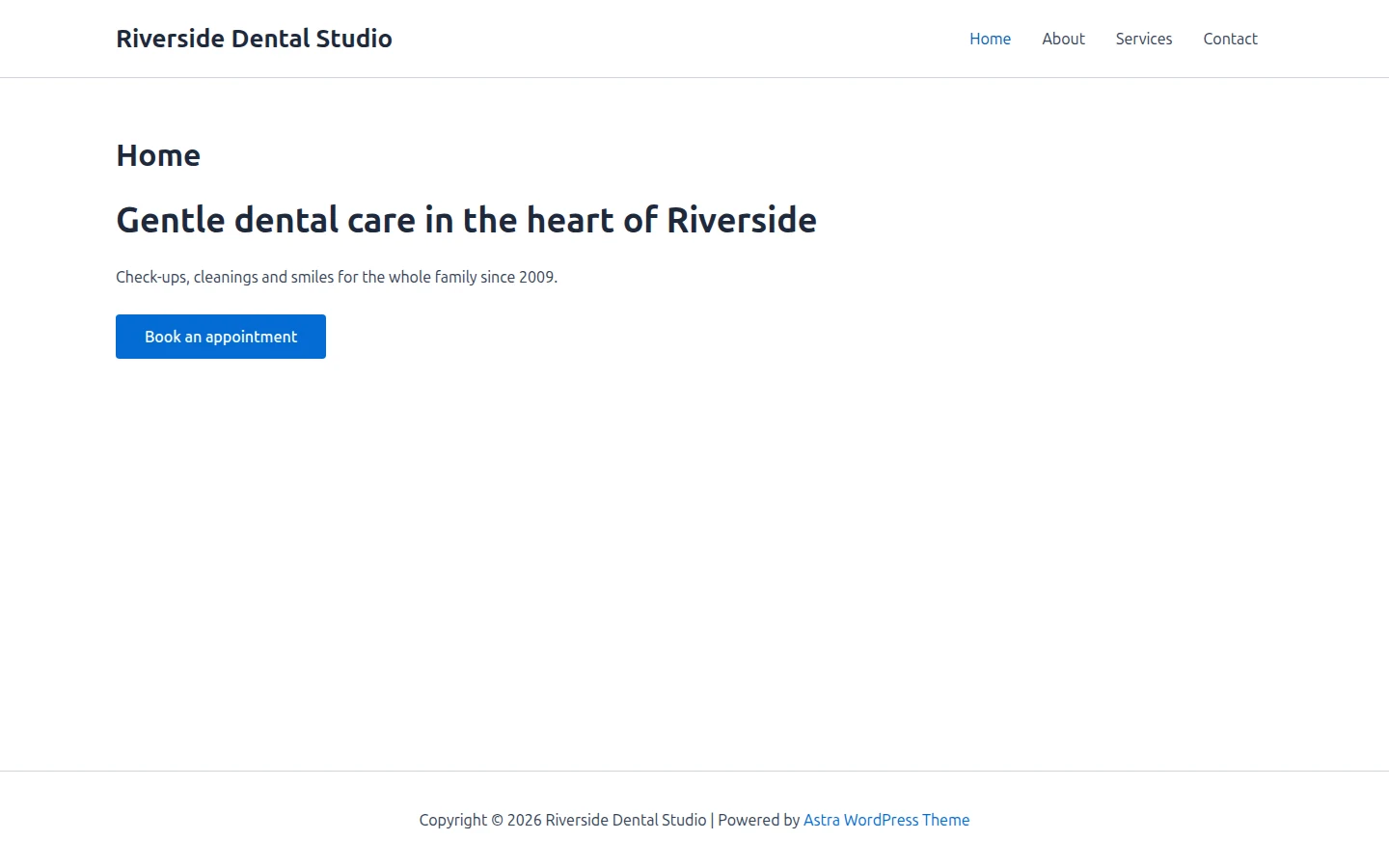
Good to know: the landing page is not added to your site's menu (the plugin never changes your menu). It goes into a separate menu called "Web2Elementor". If you want a link to it, add it yourself in Appearance → Menus.
Case 2 in numbers: 4 credits, about 15 seconds. Nothing that existed was changed.
Case 3: Move a Lovable site with several pages
Starting point: a website built with Lovable (7 pages) and a fresh WordPress site.
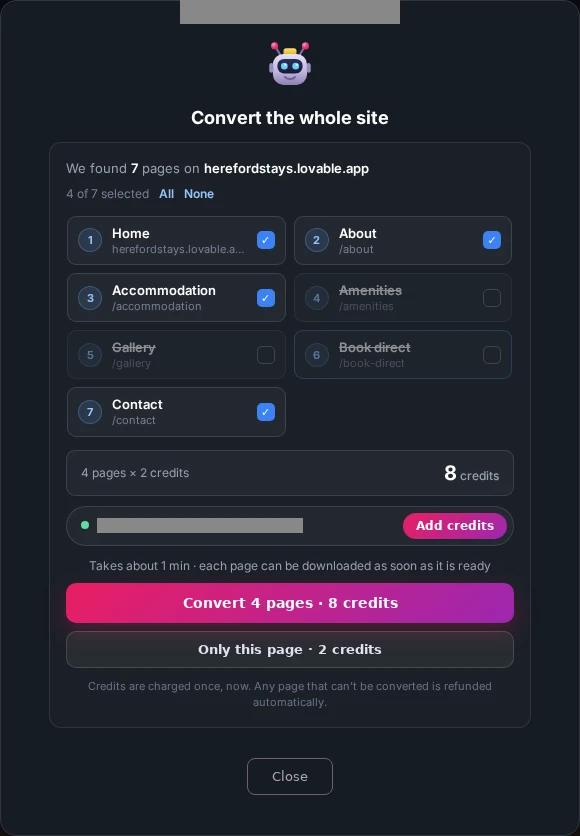
1. Convert the site on web2elementor.com. Paste the Lovable URL → Convert to Elementor → Convert the whole site. It found the 7 pages; we kept 4 (Home, About, Accommodation and Contact): "4 pages × 2 credits · 8 credits". It took 36 seconds, and the ZIP downloaded by itself.
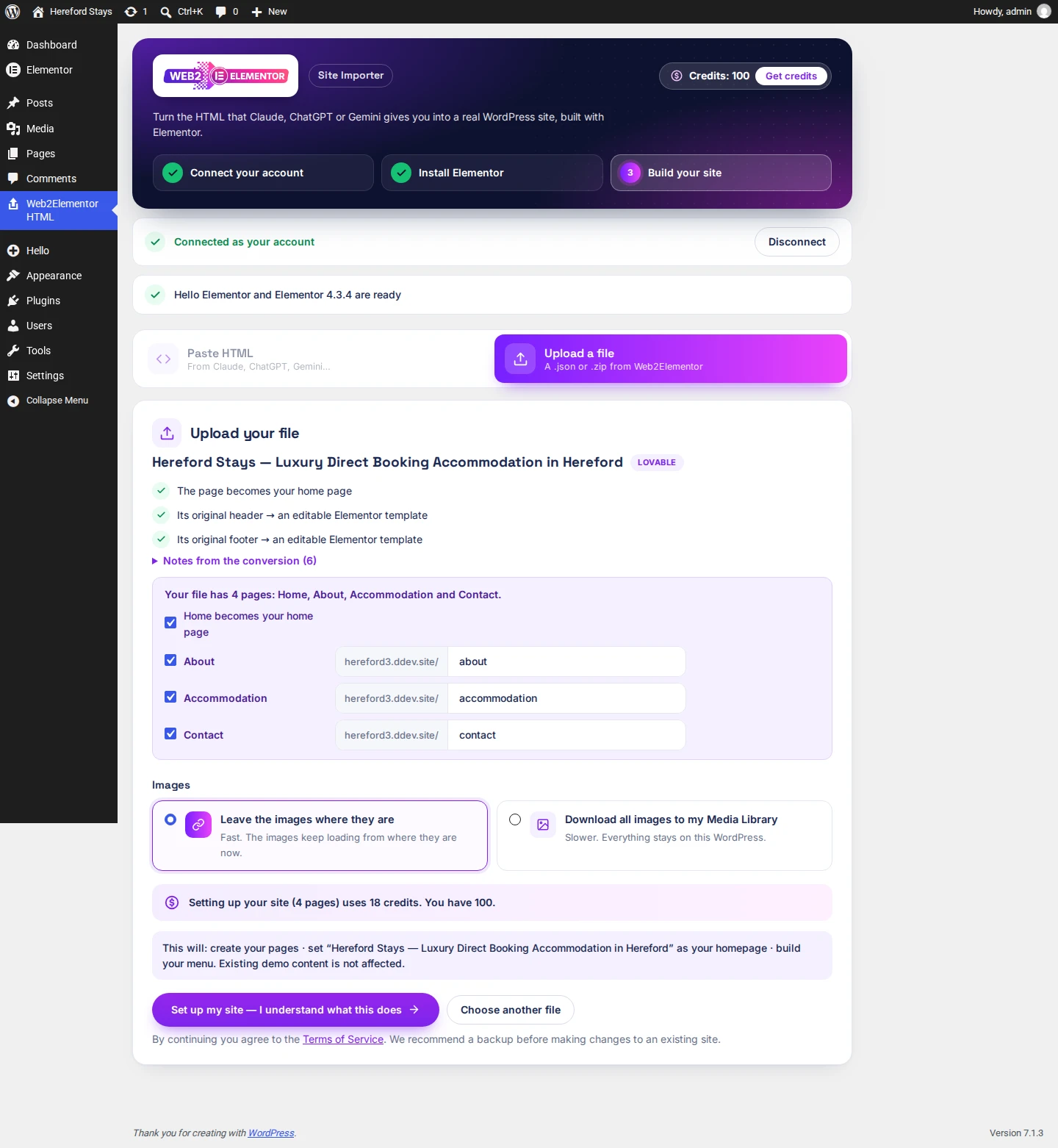
2. Upload the ZIP in the plugin. Install Elementor from the plugin (about 9 seconds), open Upload a file and choose the ZIP. The plugin lists every page with its address and a checkbox: "Your file has 4 pages: Home, About, Accommodation and Contact." It also tells you the site's header and footer will become editable Elementor templates. Price: "Setting up your site (4 pages) uses 18 credits."
3. Done in about 10 seconds. Four pages with one shared header and footer (edit them once, they change everywhere), and the menu links between the imported pages. The links to pages you didn't import do nothing for now; they connect by themselves if you import those pages later. The ☰ menu opens on phones.


What wasn't identical:
- on the Contact page, the form fields came out flat;
- the menu highlights "Home" on every page;
- one header button lost its round corners.
These are quick fixes in Elementor.
Case 3 in numbers: 8 credits to convert on the web + 18 credits to set up in WordPress, about 1 minute in total.
Case 4: Start with your home page, add the rest later
Starting point: a fresh WordPress site. You only have the home page now; the other pages come later.
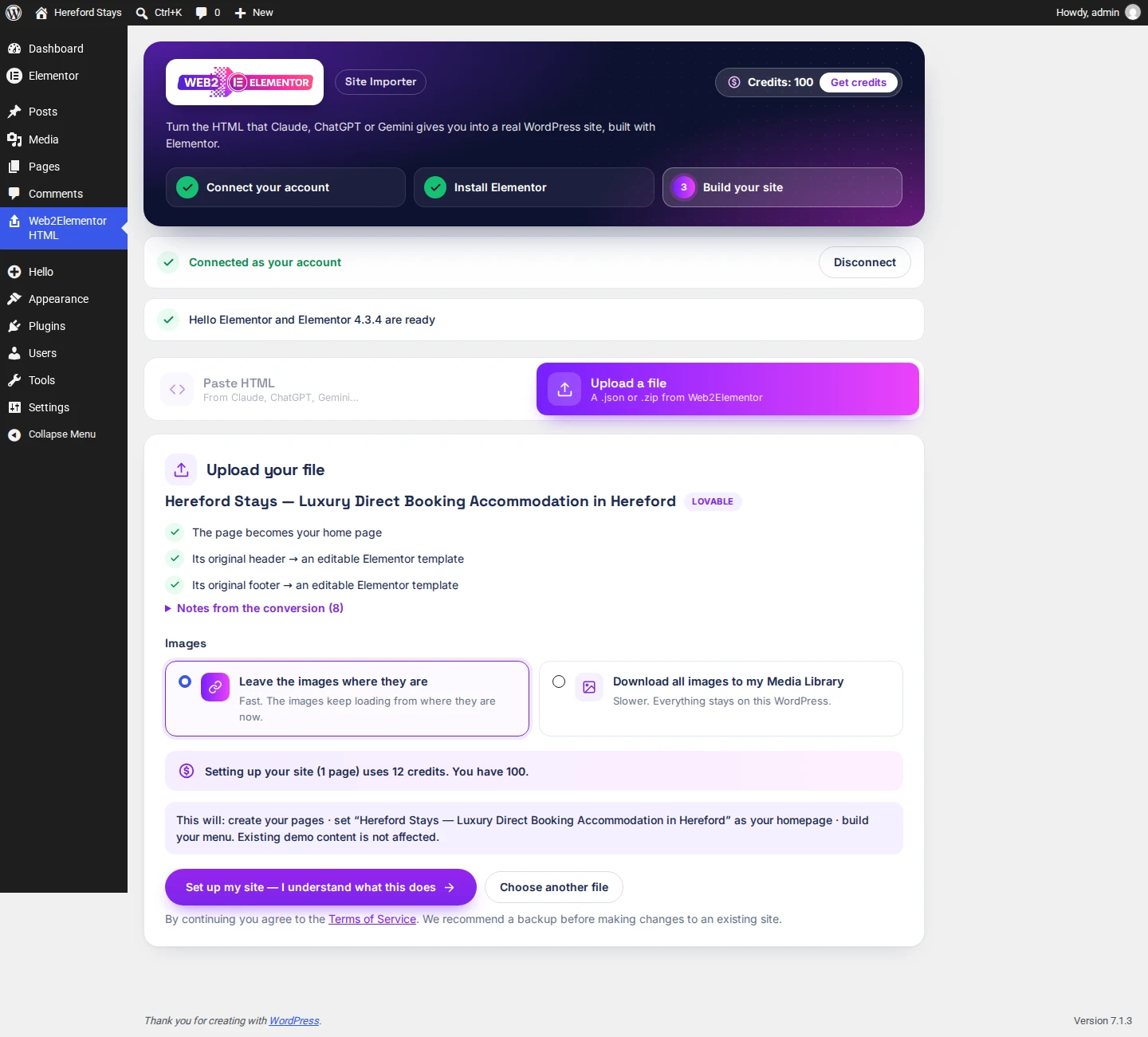
1. Set up the home page. On web2elementor.com we converted only the home page ("Only this page · 2 credits"). In the plugin: Upload a file → "Setting up your site (1 page) uses 12 credits" → done in about 6 seconds.
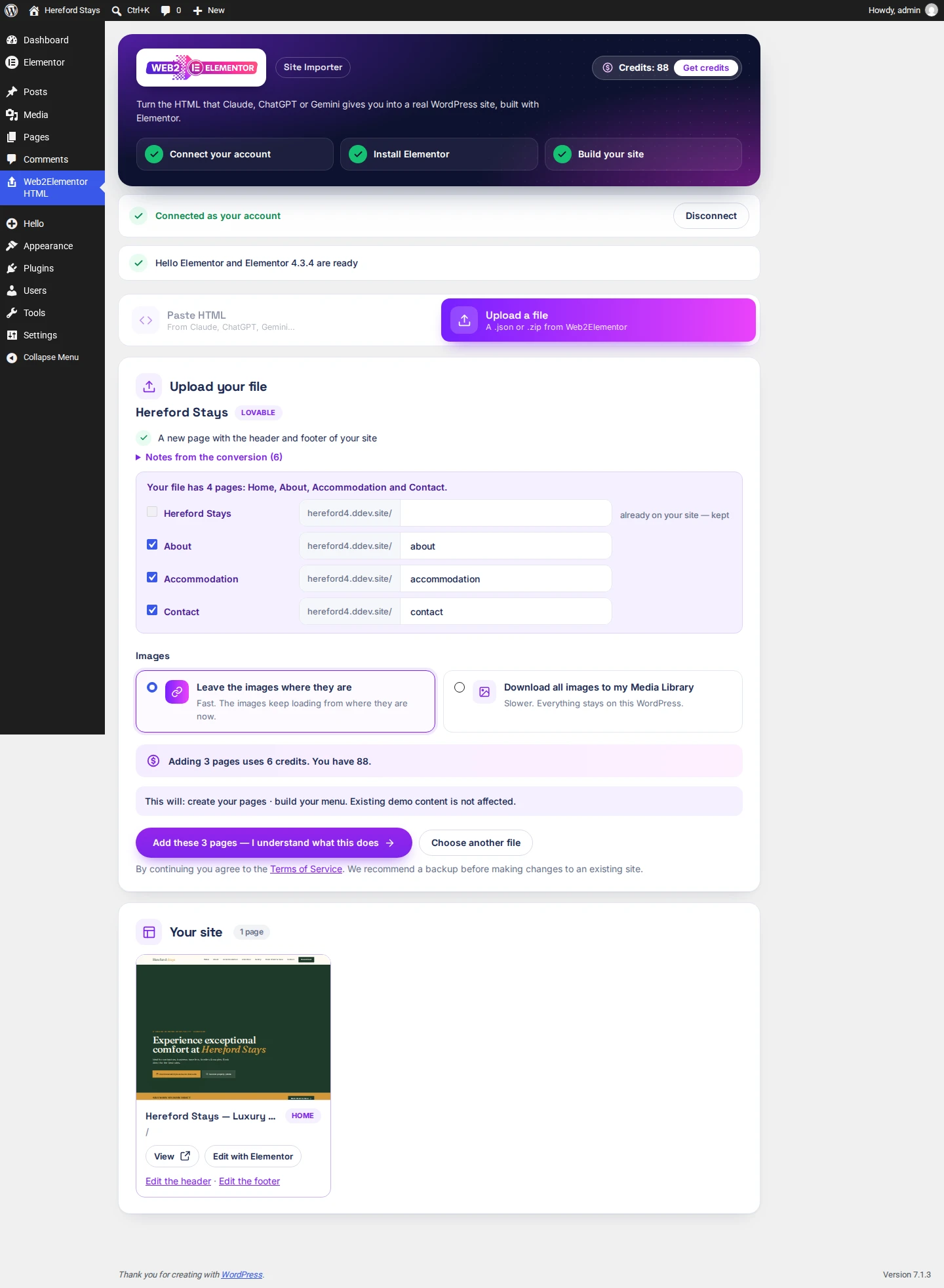
2. Later, upload the ZIP with all the pages. Choose Add pages to my website. The home page you already have comes unticked and locked: "already on your site — kept". Only the three new pages count: "Adding 3 pages uses 6 credits." Click Add these 3 pages — I understand what this does.
3. Done in about 7 seconds. Your home page menu now opens About, Accommodation and Contact, and the ☰ opens on phones.
Case 4 in numbers: 12 + 6 = 18 credits in WordPress, the same as setting up the 4 pages at once. On the web: 2 credits for the home page alone, plus the 8 of the 4-page ZIP.
What the four cases cost
| Case | Credits in WordPress | Credits on web2elementor.com | Time setting up |
|---|---|---|---|
| 1. New site from Claude + About page | 18 | — | ~25 s |
| 2. AI landing page on an existing site | 4 | — | ~15 s |
| 3. Lovable site, 4 pages | 18 | 8 | ~10 s (+36 s converting) |
| 4. Home first, 3 pages later | 18 | 2 + 8 | ~12 s |
Rules that apply to all cases:
- You see the exact number before anything is charged.
- Importing the same file or answer again within 7 days is free.
- Pages that fail are not charged.
Credits come in packs that don't expire (15 credits: $19.90) or monthly plans — see all prices.
What doesn't carry over
The plugin rebuilds your page with real Elementor elements, so some things that depend on scripts stay behind:
- hover effects;
- pop-ups that open after a delay;
- a header that changes as you scroll (it keeps its top-of-page look).
Pasted HTML keeps its header and footer inside each page. Wix, Lovable, Gutenberg and Elementor sites get a shared header and footer.
FAQ
Can I upload an HTML file to WordPress without a plugin?
Yes: paste it into a Custom HTML block, or upload the file to your server. In both cases the page stays code: you can't edit it visually, and an uploaded file doesn't use your theme or menu.
Will my HTML page be editable?
With the Web2Elementor Site Importer, yes. Every heading, text, image and button becomes an Elementor element you edit by clicking.
Will it change my existing site?
No. On a site with content the plugin doesn't change your theme, pages, menu or home page. It only adds the new pages. We still recommend a backup before making changes.
What if the AI gave me several pages in one answer?
Paste the whole answer. The plugin finds every page and lists them, each with its address and a checkbox.
Do I need Elementor Pro?
No. Elementor Free 4.3 or later is enough, and the plugin installs or updates it for you.