




Claude builds a website inside an artifact. It looks finished, and then you find out the share link is no use anywhere else. This guide shows how to take the code out of Claude and turn it into WordPress pages you edit by clicking, with the screens and times from our own tests in November 2026.
The quick answer
Download the artifact as an HTML file, or copy its code, and give it to the Web2 - HTML to Elementor Converter plugin in WordPress. You get real pages built with Elementor, with your home page set and your menu linked. You don't need Elementor Pro.
| Where you built it | What to click in Claude |
|---|---|
| A chat artifact | Open the artifact. Use Copy, or the arrow next to it and Download to get an .html file |
| Claude Design | Export → Export as standalone HTML |
| No button in sight | Ask: "Give me the complete code of this website as one HTML file." |
Why the share link is not enough
You can publish an artifact and send the link to a friend. What you can't do is hand that link to another tool. The page opens inside Claude's own viewer, and the code is not there to be read from outside. We see it in our own numbers: people paste claude.ai links into our converter and almost none of them work.
So the code has to come out through you. It takes one click.
Get the code out of Claude
Copy and Download lead to the same place. Download gives you a file to upload. Copy gives you code to paste. Use whichever you find easier.
If you are about to ask Claude for the site, this prompt saves a round trip:
Create a one-page website for my bakery, Golden Crust Bakery, in a single HTML file using HTML and Tailwind CSS. Use full image URLs (https:// links, not local files) and a top menu that links to each section. No pop-ups and no scroll animations.
One HTML file is easier to move than a React project, and full https:// image links keep your pictures. Claude sometimes writes local file names like images/bread.jpg, which can't load outside the chat.
Want several pages? Ask for them in one answer:
Create a website for my yoga studio, Still Water Yoga, with three pages: Home, Classes and Contact. Give me the three HTML files in this one answer.
Stop editing with prompts once the site looks right
Every new request makes Claude rewrite the whole file. On a long page it starts breaking things that worked: a section vanishes, the colors drift, the menu stops opening. Once the site is in WordPress, a small change is a click in Elementor, and nothing else on the page moves.
Put it on WordPress with the plugin
We ran this on a clean WordPress with the version of the plugin on WordPress.org.
1. Install the plugin and get Elementor ready
In WordPress, go to Plugins → Add New, search for Web2 - HTML to Elementor Converter, install it and activate it. It is on WordPress.org. Then open Web2 HTML to Elementor in the WordPress menu. The screen has three steps across the top: Connect your account, Get Elementor ready and Build your site.
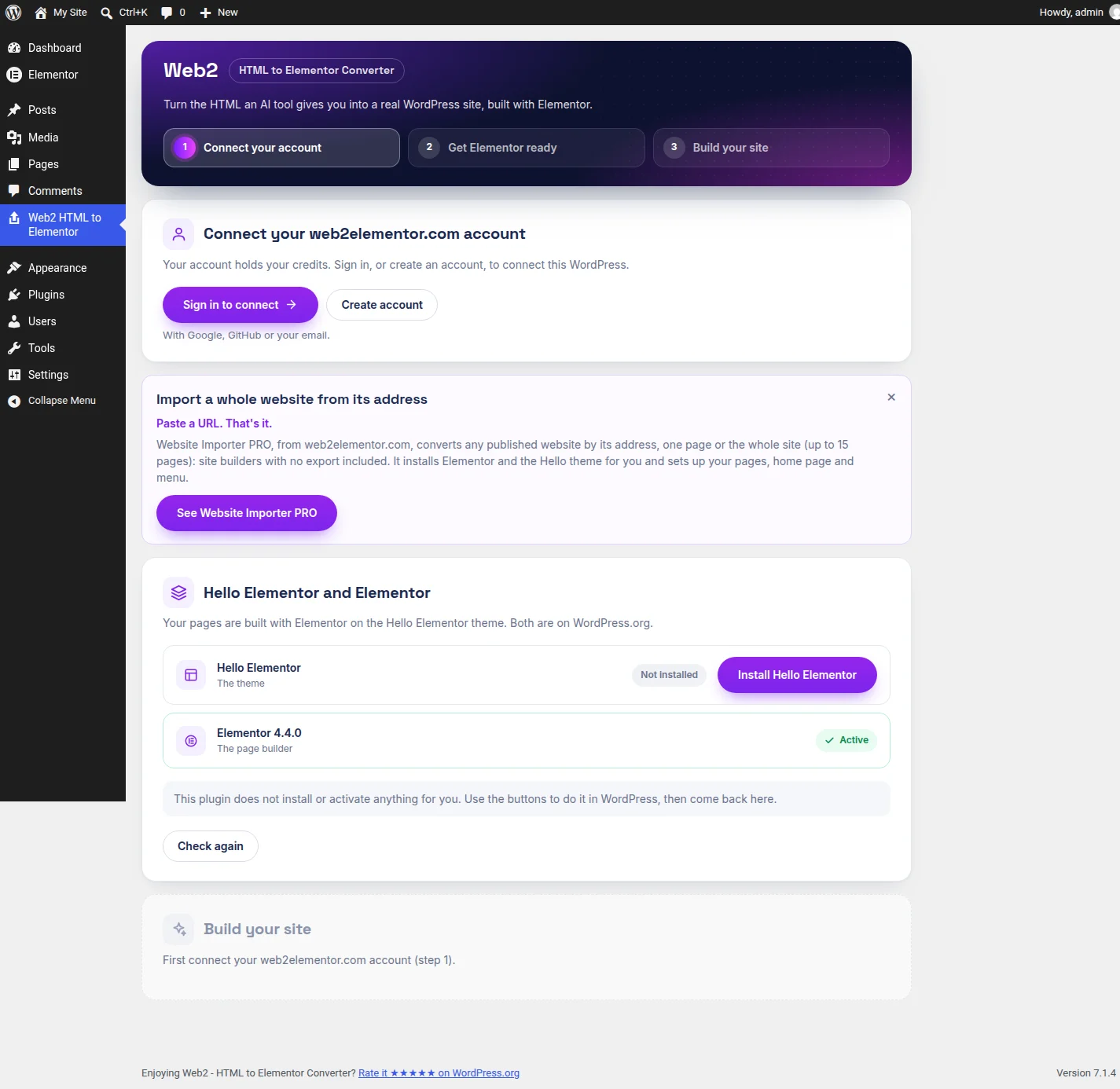
Click Sign in to connect, or Create account if you are new. You sign in with Google, GitHub or your email and approve a short code in your browser. There is no API key to copy. In our test the plugin showed "Connected" about eight seconds after the code was approved.
The plugin does not install anything behind your back. If the Hello Elementor theme or Elementor are missing, it shows a button for each one, you install them from WordPress and click Check again.
2. Paste the answer, or upload the file
Step three has two tabs, and they end in the same place.
- Paste HTML. Paste the whole answer Claude gave you, sentences included. You don't have to find where the code starts: the plugin keeps the code and drops the text around it. If the CSS came in its own block, there is a second box for it.
- Upload a file. Choose your .html files, with their .css and .js if they came apart. You can also drop them on the box.
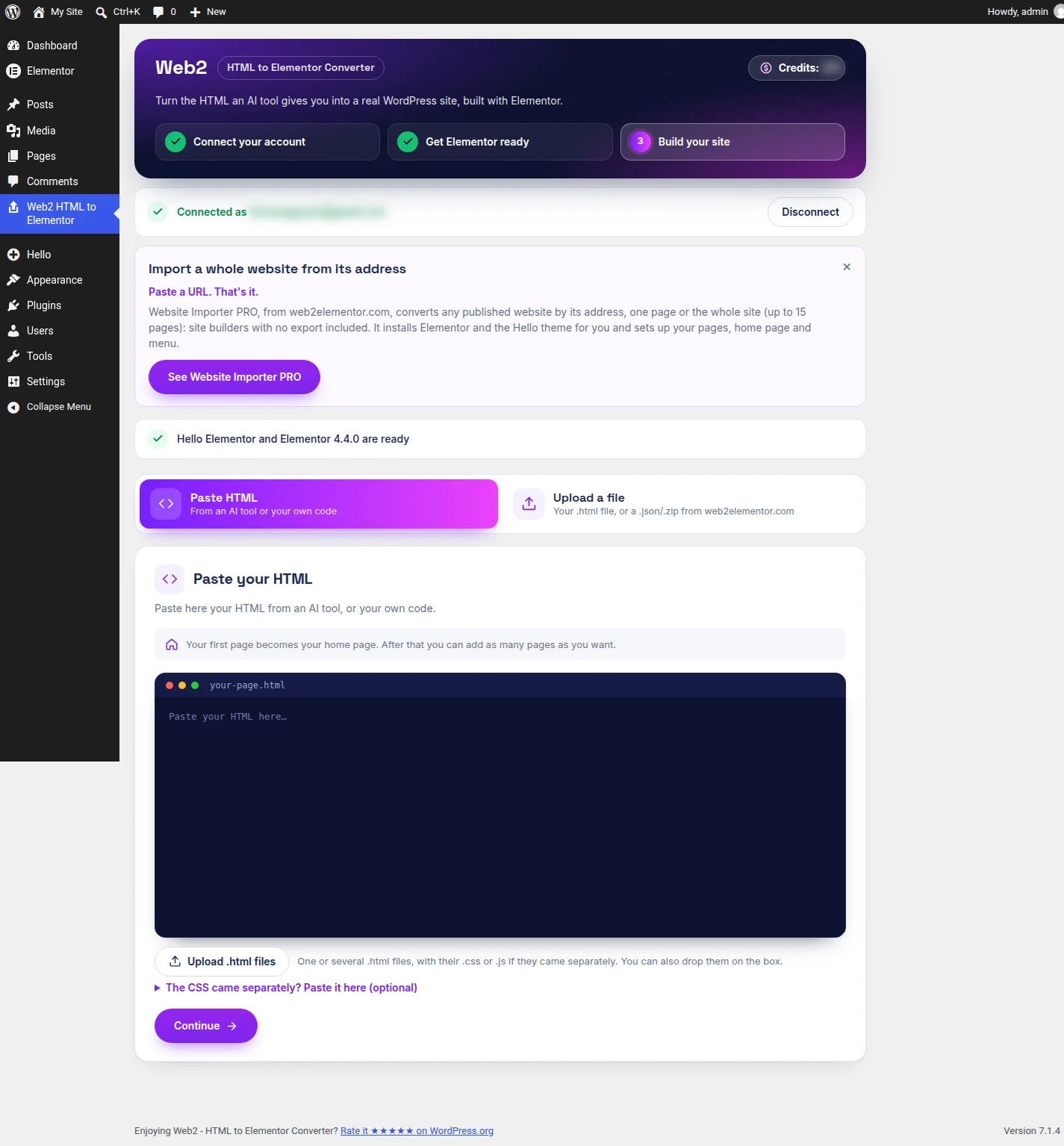
The note above the box says what happens next: "Your first page becomes your home page. After that you can add as many pages as you want."
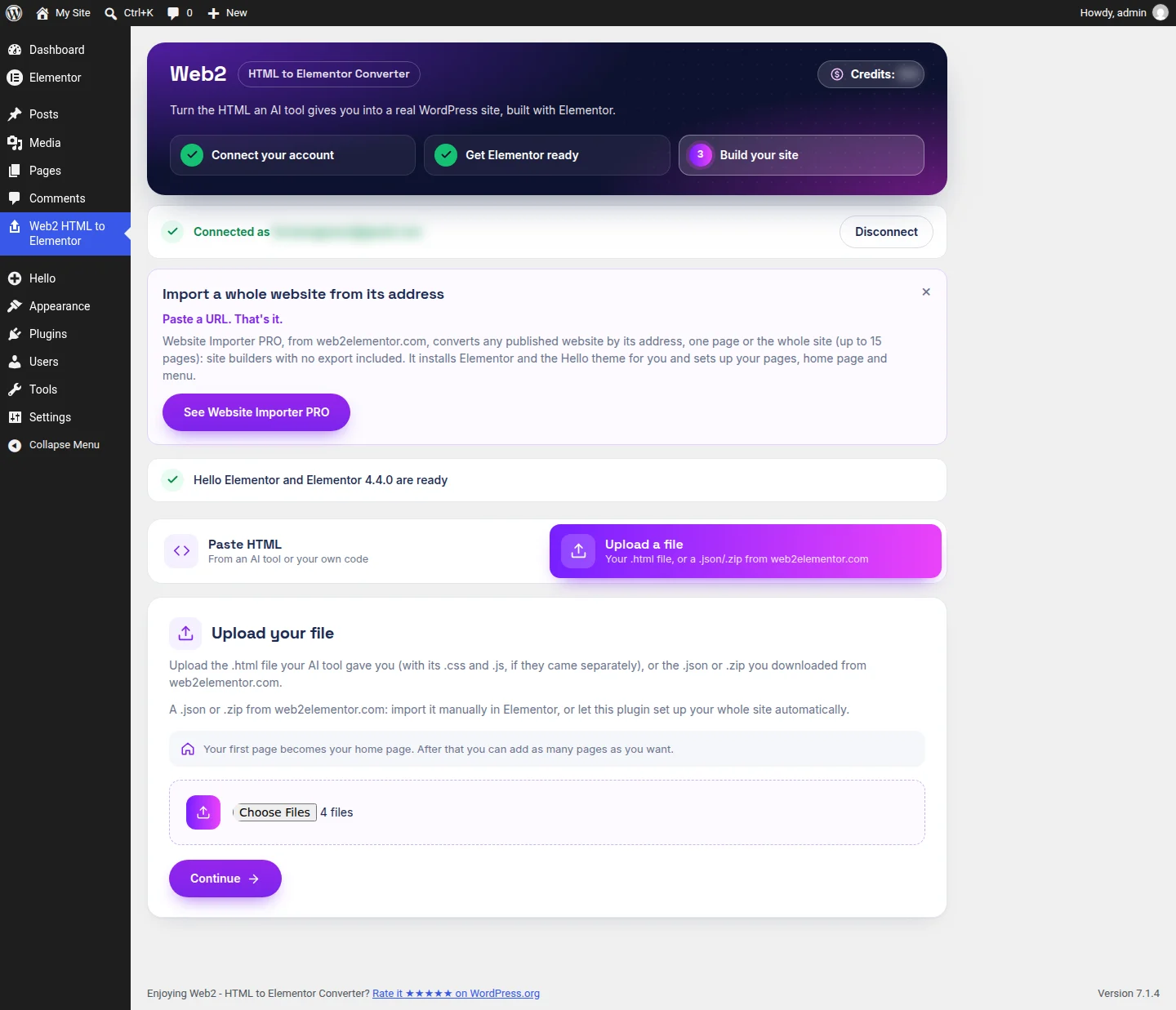
For this guide we took the upload road, with the kind of files a download gives you: two .html pages, a .css file and a .js file. Above, the four files chosen at once.
3. Check what the plugin found
Click Continue and you get a summary before anything is built. With our four files the plugin wrote: "Your files have 2 pages: index.html and about.html." The first becomes the home page, and the second gets an address you can change in the box next to it. This is that screen:
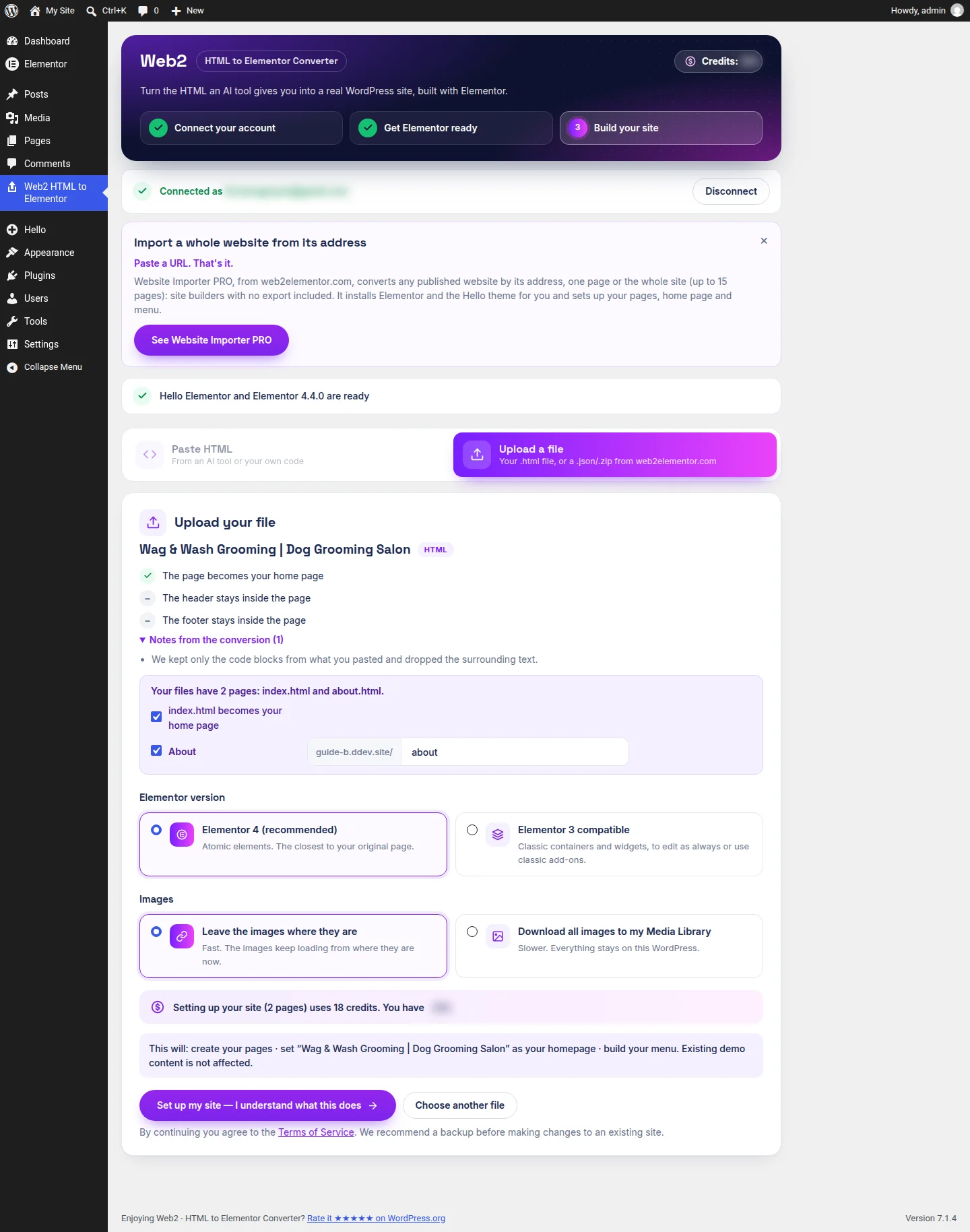
Two choices sit below the list:
- Elementor version. Elementor 4 (recommended) is the closest to your original page. Elementor 3 compatible uses classic containers and widgets, for people who work with classic add-ons.
- Images. Leave the images where they are is fast: they keep loading from their current address. Download all images to my Media Library is slower and keeps everything on your WordPress.
The price in credits is on this screen too, before you accept. Then click Set up my site — I understand what this does.
4. Open your site
Both pages were ready about 32 seconds later. The plugin lists them under Your site, each with View and Edit with Elementor. Click Edit with Elementor and every heading, image and button is an element you change by clicking.
The menu at the top links your pages, and on a phone it opens from the ☰ button, as it did in the original. Links and buttons inside the pages that pointed to another page of the site now open that page in WordPress.
Just one page? Use the web converter
- Open the HTML to WordPress converter and paste the code, or upload the .html file.
- Click Convert and download your template.
- In WordPress, go to Elementor → Templates → Saved Templates → Import Templates, upload the file and insert it into a page.
This is the short road for one page. For several pages, or if you want the home page and the menu set up for you, use the plugin.
Add more pages later
Ask for the next page in the same chat, so Claude keeps the style:
Now make me the About us page with the same style
Go back to the plugin and paste the new answer. Because your site already exists, the plugin now asks "What do you want to do?" and gives you two options:
- Set up my website replaces your home page with what you paste.
- Add pages to my website. In the plugin's words: "Your home page stays. The new pages get their own address and join your menu."
Choose Add pages to my website. We did this with a bakery site and its About page. The summary said "A new page, exactly as it is in the file" and "'About Us' is added to your site's menu", proposed the address about-us (you can change it) and showed the price. We clicked Add this page — I understand what this does, and the page was live 31 seconds later.
Two details from that test, so they don't surprise you:
- The plugin adds the new page at the end of your home page's menu. A link you already had, like our "Our Story" that jumped to a section of the home page, keeps doing what it did. Change it in Elementor if you want it to open the new page.
- If the AI already wrote an "About Us" link in the new page's own menu, you will see it twice there. Delete one in Elementor.
Already have a WordPress site?
The plugin notices and tells you: "This site already has content… We won't touch your current theme, pages or menu — your imported pages will be added alongside them."
We tried it on a site with its own theme, home page and menu, and pasted a landing page. The summary read "The page is added to your site; your homepage stays as it is", and the button changed to Add this page — I understand what this does. The page was built in about 24 seconds. The home page and the menu looked the same before and after.
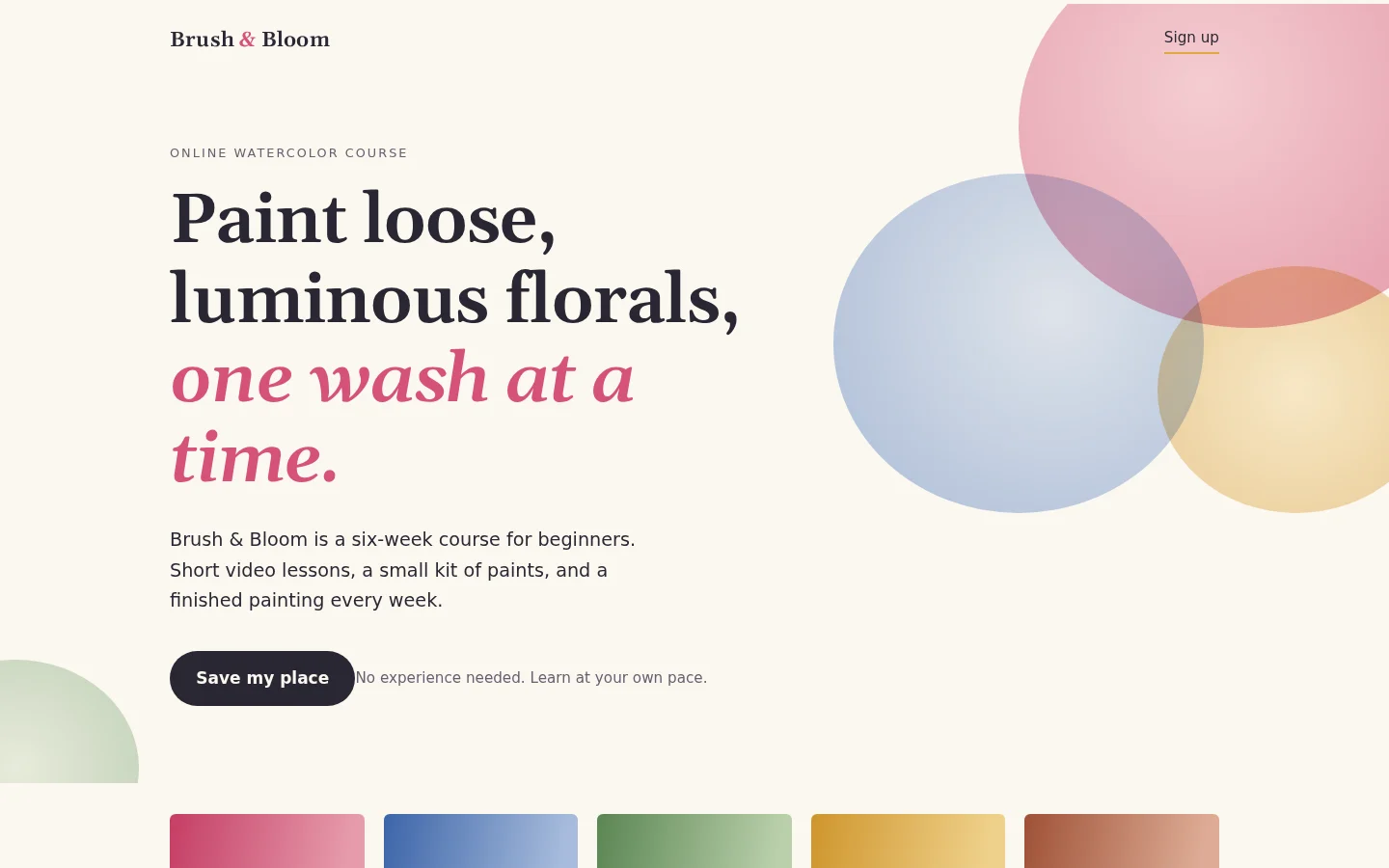
This is the landing page we added, a watercolor course called Brush & Bloom, as it looks in WordPress:
What moves and what doesn't
What moves is the design of each page: layout, text, images, buttons and menu, as Elementor elements you click and edit.
What stays behind is anything that needs a server or custom code:
- Forms. They arrive drawn on the page, but they are not working forms. Replace them with a form widget or a form plugin in WordPress.
- Logins, member areas and databases.
- Shops, bookings and blog posts.
- Pop-ups, scroll animations and other custom JavaScript.
FAQ
Open the artifact and use the arrow next to Copy to download it as an HTML file. In Claude Design, use Export and then Export as standalone HTML. If you see no button, ask Claude for the complete code of the website as one HTML file.
No. The link opens inside Claude and tools cannot read the code from it. Download the file or copy the code.
Yes. Paste the code or upload the .html file in the Web2 - HTML to Elementor Converter plugin, and it builds WordPress pages with Elementor, sets the home page and links the menu.
No. The pages are built with Elementor itself, in Elementor 4 or in an Elementor 3 compatible version.
Yes. Ask Claude for the next page with the same style, paste the answer in the plugin and choose Add pages to my website. Your home page stays and the new page gets its own address.
No. A form arrives drawn on the page but it does not send anything. Replace it with a form widget or a form plugin in WordPress.
Used another tool, or comparing roads? See 4 ways to put an AI-built website on WordPress. Still deciding whether Claude is the right way to build the site? Read Claude website builder. Made the site with ChatGPT? See ChatGPT Sites to WordPress. Your account also works in the web converters and the Chrome extension.