



You asked an AI for a website and it gave you one. Now you want it on WordPress, where you change a word by clicking it and not by writing another prompt. There are four ways to do that. Which one fits depends on what the AI handed you: code, a file, a published address or just a picture. We tested them in November 2026, and this guide gives the real screens, times and rough edges of each. It is for vibe-coded websites too.
The quick answer
Find what you have in the first column. The second column is your way. All four end with pages built in Elementor that you edit by clicking, and you don't need Elementor Pro.
| What you have | The way to go | Best for |
|---|---|---|
| One page of code, and you don't want to install anything | 1. The web converter | A single landing page |
| The code or the files (what Claude, ChatGPT or Gemini wrote) | 2. The WordPress.org plugin | A site of several pages, built inside WordPress with its menu |
| A published address (a Lovable, Base44, Bolt, v0 or Replit site) | 3. Website Importer PRO | A whole site, up to 15 pages, from its address |
| Only a picture of the site | 4. The image converter | A design the AI drew for you |
| No WordPress site yet | See your site on a WordPress first | Looking before you set anything up |
First: what did your AI give you?
AI tools hand over a website in one of three shapes: a link, code or a picture. Find your tool.
Claude
Claude builds the page as an artifact, and its share link only opens inside Claude. Take the code out yourself: open the artifact and use Copy, or the arrow next to it to download an .html file. In Claude Design it is Export → Export as standalone HTML. You now have code. Step by step: how to download a Claude artifact and put it on WordPress.
ChatGPT
A ChatGPT site lives at an address ending in .chatgpt.site and is private until you open Share and choose Anyone on the internet. Then you have a link. If ChatGPT wrote the page in the chat, you have code. And a link that starts with chatgpt.com/s/ is a picture. All three cases: ChatGPT Sites to WordPress.
Gemini
Gemini's Canvas shows the page but has no download button. Click Code, copy everything and paste it. That is code.
Google Stitch
Select your screens, then Export → .zip and use the code.html inside, or Code to Clipboard and paste. That is code.
Lovable
Lovable publishes your site at yourproject.lovable.app or on your own domain. That address is all you need, so you have a link. Don't use the code export: it is a React project, and WordPress cannot run it. Step by step: 3 ways to move a Lovable site to WordPress.
Base44, Bolt, v0 and Replit
They publish your site at a public address as well. Use that address: it is a link.
Way 1: one page, with the web converter
- Open the HTML to WordPress converter and paste the code, or upload the .html file.
- Click Convert and download your template.
- In WordPress, go to Elementor → Templates → Saved Templates → Import Templates, upload the file and insert it into a page.
Good: nothing to install, and you are done in a couple of minutes. Not so good: it is one page at a time, and you place it in your site and your menu yourself.
Have a published address and not the code? The website converter does the same from a URL.
Way 2: your code, with the WordPress.org plugin
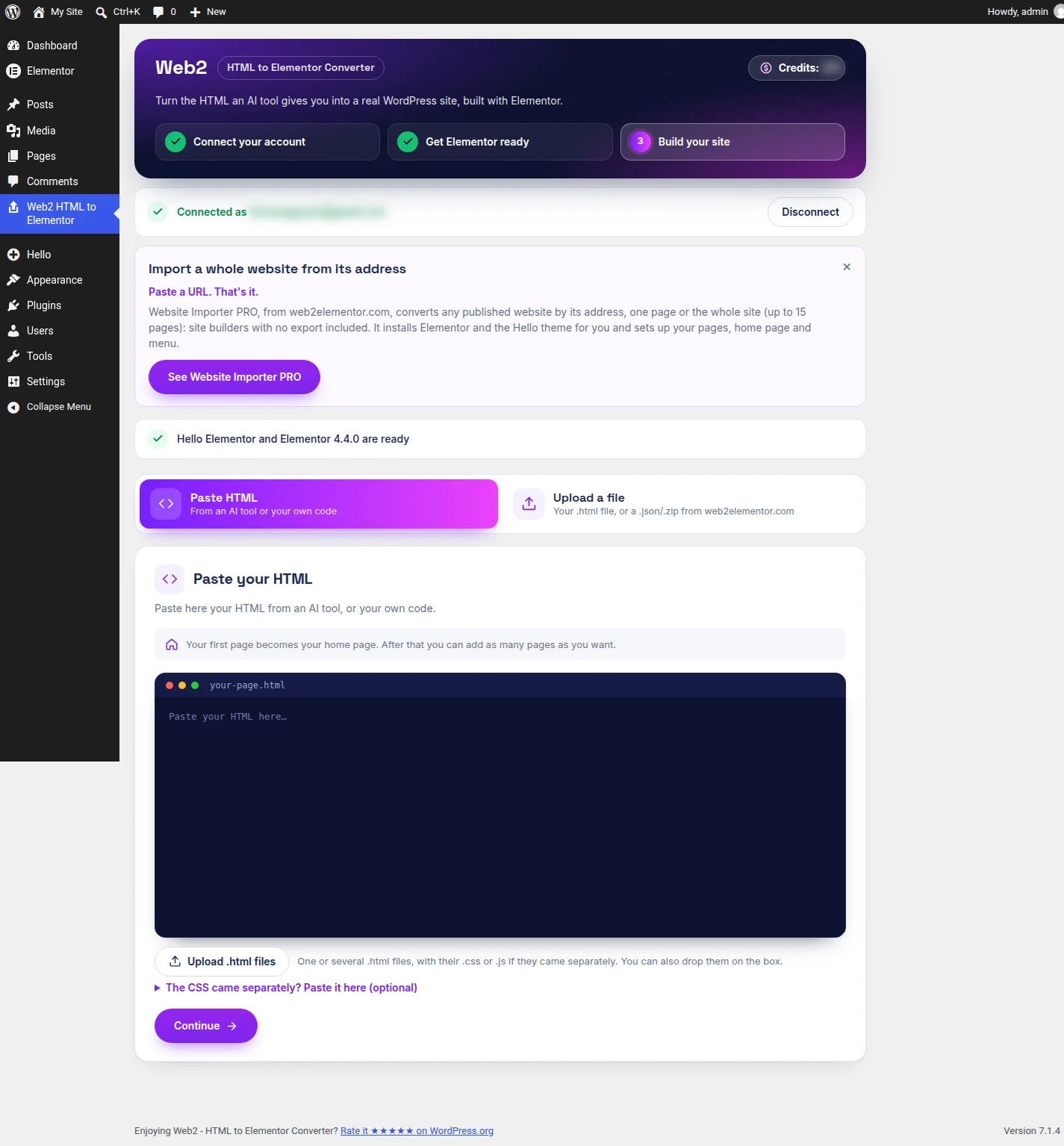
Web2 - HTML to Elementor Converter works inside WordPress. You paste the whole answer the AI gave you, or upload the .html files with their .css and .js, and it builds the pages, sets the first one as your home page and links the menu.
This is where you paste or upload, inside WordPress:
What we measured:
- One answer with three pages (a yoga studio: home, classes and contact). The plugin found the three and built them in about 40 seconds.
- Four uploaded files (two .html pages, a .css and a .js). Read as two pages and built in about 32 seconds.
- A second page from the same chat ("Now make me the About us page with the same style"). Added in 31 seconds, with its own address and a new entry at the end of the menu.
- A site that already had content. The new page was added alongside. The theme, the home page and the menu were the same before and after.
Good: several pages at once, with the home page and the menu done for you. You see the price before you accept. Not so good: you install Elementor and the Hello Elementor theme yourself, from the buttons the plugin shows.
The full walk-through, screen by screen, is in the Claude guide and the ChatGPT guide.
Way 3: your published address, with Website Importer PRO
Website Importer PRO is our second WordPress plugin. It has the same Paste HTML and Upload a file tabs, and a third one the WordPress.org plugin does not have: Import from a URL.
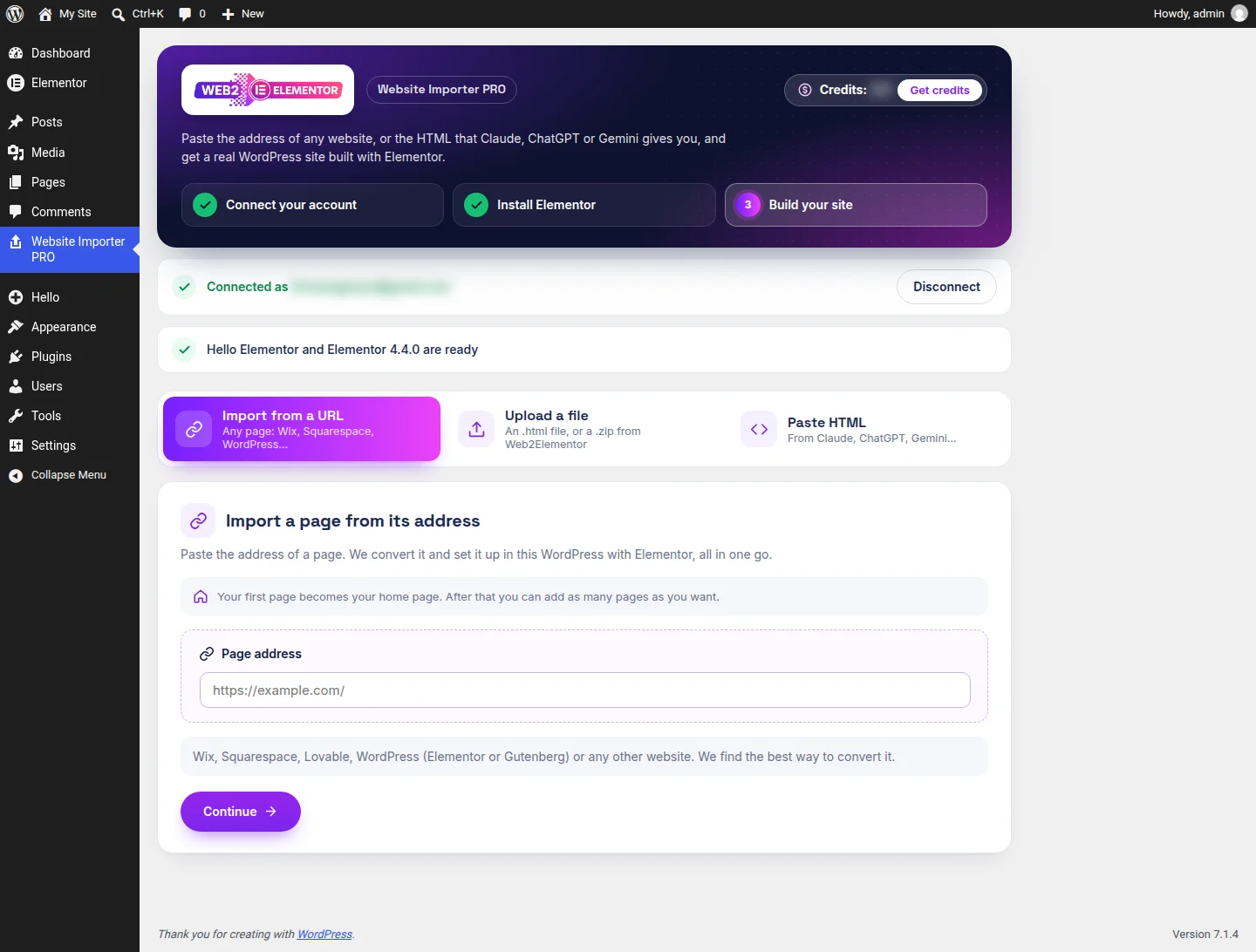
- Upload the plugin in Plugins → Add New → Upload Plugin and activate it. Click Install and activate and it installs the Hello Elementor theme and Elementor for you. That took 9 seconds in our test.
- Connect your account, the same way as in the other plugin.
- Paste the address in Page address and click Continue. The plugin looks at the website and, a few seconds later, lists the pages it found, each with a checkbox and its future address. It takes the main page and up to 14 more.
- Untick the pages you don't want and accept.
We tried it with a site published by an AI builder. The home page was in WordPress about 46 seconds after we accepted, and each extra page took a little over a minute. Importing from an address has one advantage over pasting: the site's header and footer arrive as Elementor templates, so you edit them once for every page.
Check your internal links afterwards. Links to pages you imported point to their new WordPress address. Links to pages you left out go nowhere until you import those pages or change the link.
Good: no code to copy, a whole site in one go, and Elementor installed for you. Not so good: the limit is 15 pages per import, and a site that only draws itself in the browser may not convert from its address.
Way 4: start from a picture
Sometimes the AI gives you no code at all. Ask ChatGPT for a landing page and it may draw one. A picture is enough to start.
- Ask your AI for the picture, or take a full screenshot of the page it built.
- Open the image converter and upload it. PNG, JPG and WEBP work.
- Download the result and import it in WordPress from Elementor → Templates → Import Templates.
Be clear about what you get. The converter reads the picture and rebuilds it with Elementor elements. It is a reading of the design, not a copy of the code, so adjust the text, the colors and the spacing in Elementor, and put in your real images.
Good: it works when a picture is all you have. Not so good: it is one page, and the least exact of the four ways.
No WordPress yet? See your site on one first
All four ways assume you have a WordPress site to put the pages in. If you don't, you can still see the result before you set anything up.
Convert a website from its address on web2elementor.com and, next to the download, there is a button: Show me on WordPress. It creates a WordPress site with Elementor and your converted pages already in it. That takes about a minute. You open it, look around and edit it like any WordPress site.
Three things to know:
- It is temporary. The site stays up for about two days. Before it is removed you get an email, "Your website will be deleted soon", with a Publish my website button: choose a plan there and the site stays online.
- It is not offered everywhere yet. Today the button appears in the United States, the United Kingdom, Canada, Australia, Germany, France, Italy, the Netherlands and Spain. In other countries you get the download and use one of the four ways above.
- There is a daily limit on how many of these sites are created. If today's are gone, your download is still ready and you can try again tomorrow.
The two plugins, side by side
| WordPress.org plugin | Website Importer PRO | |
|---|---|---|
| Paste the AI answer | Yes | Yes |
| Upload .html files | Yes | Yes |
| Import from an address | No | Yes, one page or up to 15 |
| Elementor and the Hello theme | You install them from the buttons it shows | Installed for you |
| Header and footer as Elementor templates | Stay inside each page in our tests | Yes, when importing from an address |
| Where you get it | WordPress.org | web2elementor.com |
Both use the same Web2Elementor account and credits, and so do the web converters and the Chrome extension.
The other ways, and where each one stops
Ask an AI how to do this and you get three suggestions. They all work, up to a point.
| The suggestion | What you end up with | Where it stops |
|---|---|---|
| Paste the code into a Custom HTML block | Your page inside a WordPress page | It is still one block of code. Your theme and menu ignore it, and changing a sentence means editing HTML |
| Embed it with an iframe | A window in WordPress that shows a site hosted somewhere else | The site is not in WordPress at all. You keep editing it in the other place |
| Rebuild it by hand, or turn it into a theme | A real WordPress site | Hours of work for a page that already exists, and a developer if you go the theme route |
There is a fourth option nobody should feel bad about: leave it where it is. If the site only has to be online and you are happy editing it by prompt, it works. WordPress earns its place when you want to edit by clicking, add a blog or a shop later, hand the site to a client, or stop depending on the chat that built it.
What moves and what doesn't
What moves is the design of each page: layout, text, images, buttons and menu, as Elementor elements you click and edit.
What stays behind is anything that needs a server or custom code:
- Forms. They arrive drawn on the page, but they are not working forms. Replace them with a form widget or a form plugin in WordPress.
- Logins, member areas and databases.
- Shops, bookings and blog posts.
- Pop-ups, scroll animations and other custom JavaScript.
FAQ
Paste its code or upload its .html file in the Web2 - HTML to Elementor Converter plugin, import its published address with Website Importer PRO, or convert one page on web2elementor.com and import it in Elementor. If you only have a picture, use the image converter.
No. What matters is whether you have code, a published address or a picture. Every AI tool gives you one of the three.
Not the project itself, because WordPress cannot run it. Publish the site from your tool and use its public address, or ask the AI for the same page as a single HTML file.
Yes. Paste one answer that holds all the pages, upload the files together, or import the site from its address, up to 15 pages at a time.
No. The pages are built with Elementor itself, in Elementor 4 or in an Elementor 3 compatible version.
No. A form arrives drawn on the page but it does not send anything. Replace it with a form widget or a form plugin in WordPress.