




Lovable gets a good-looking site online in an afternoon. Then you want a blog, or a client asks for WordPress, or you are tired of writing a prompt to change one word. This guide shows three ways to move a Lovable site to WordPress, in order, with the steps, the times we measured in November 2026 and the things that do not come across.
The quick answer
Publish your Lovable project and use its public address. You do not need to export the code or connect GitHub. Paste the address into our converter on the web, or into Website Importer PRO inside WordPress, and each page becomes a WordPress page built with Elementor that you edit by clicking. One page or the whole site, up to 15 pages at a time. Elementor Pro is not needed.
| Way | Where you do it | Best for |
|---|---|---|
| 1. Paste the address on the web | web2elementor.com | Trying it with one page, or converting first and importing later |
| 2. Import it inside WordPress | Website Importer PRO | The whole site in one go, with home page, menu, header and footer set up |
| 3. Page by page from Chrome | The Chrome extension | One page, or only a section of it |
Convert my Lovable site See Website Importer PRO
Watch it first
This is the whole move in under four minutes: a published Lovable project, converted from its address and opened in Elementor.
Before you start: two things people get wrong
- Use the published address, not the editor link. The address that works looks like
yourproject.lovable.app, or your own domain. The link you see while you build,lovable.dev/projects/…, only opens for you. We see people paste that one every week, and it cannot be read from outside. Click Publish in Lovable first, then copy the address it gives you. - Do not export the code. Lovable lets you sync the project to GitHub and download it, and what comes out is a React app. WordPress cannot run a React app, so that export only helps if you plan to pay a developer to rebuild the site as a theme. For everything in this guide the public address is enough.
Way 1: paste the address on the web
- Open the Lovable to WordPress converter and paste your published address.
- Click Convert. Choose one page or the whole site. For a whole site the converter lists the pages it finds, up to 15, and you tick the ones you want.
- Download the result.
- In WordPress, import it from Elementor → Templates → Import Templates. Or upload the ZIP in the Upload a file tab of our WordPress.org plugin, and it sets up the pages for you.
In one of our tests a Lovable site had seven pages. We kept four of them, and the conversion took 36 seconds.
Good: nothing to install to try it, and you see the result before you touch your WordPress. Not so good: there is a download and an import in the middle.
Way 2: import it inside WordPress with Website Importer PRO
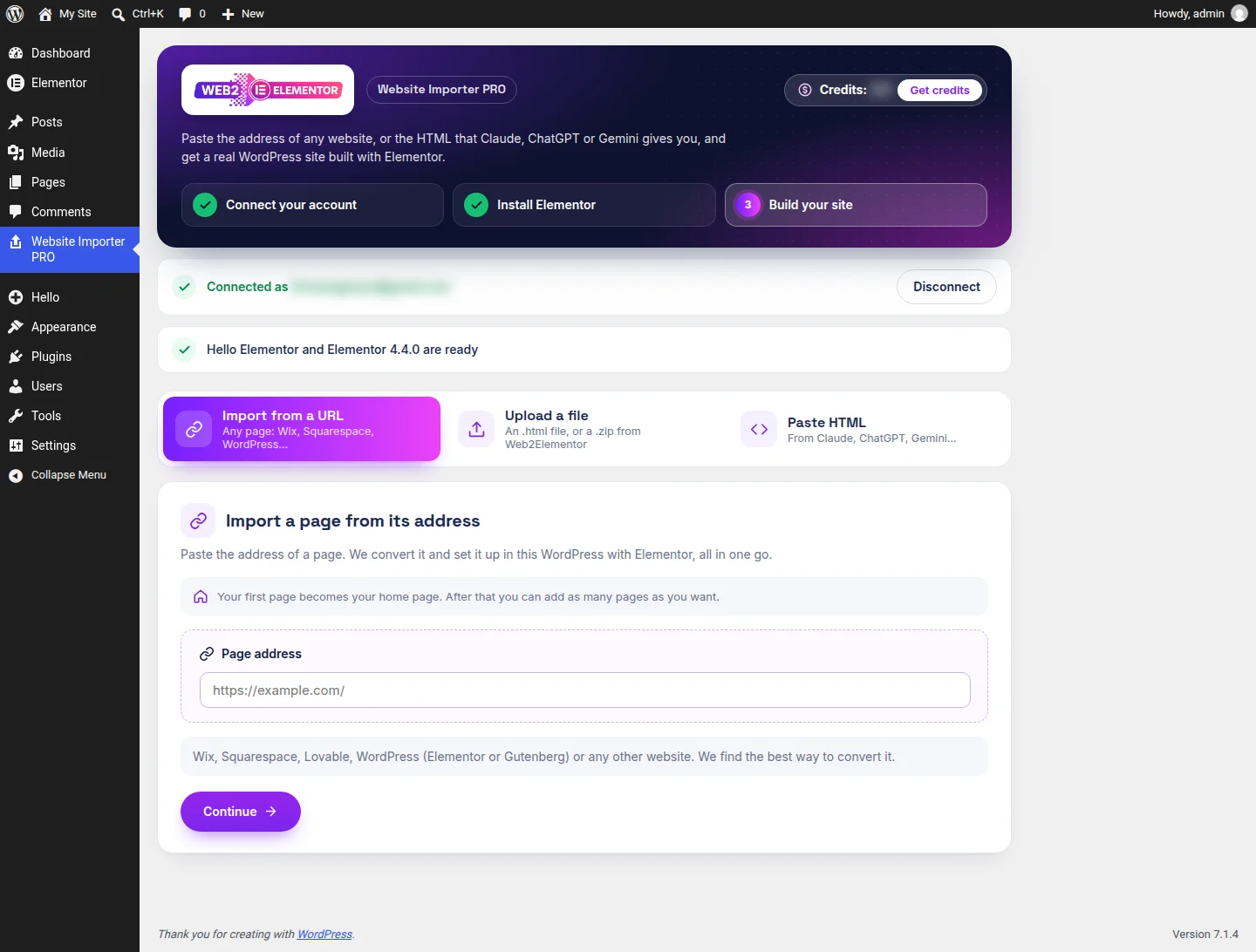
Website Importer PRO does the conversion and the setup in one place. This is the screen where the address goes:
- Upload the plugin in Plugins → Add New → Upload Plugin and activate it.
- Click Install and activate. The plugin installs the Hello Elementor theme and Elementor for you. That took 9 seconds in our test.
- Connect your Web2Elementor account, or create one from the same screen.
- Open Import from a URL, paste your address in Page address and click Continue.
- The plugin looks at the site and recognizes it. Ours came back labeled Lovable after 8 seconds, with a list: "This website has 15 pages", each with a checkbox and its future address. Untick the pages you do not want.
- Check the price, which is shown before you accept, and click Set up my site — I understand what this does.
We ran it on a Lovable site for an electrician. The home page was in WordPress about 46 seconds after we accepted, and each extra page took a little over a minute. This is that home page in WordPress, on a desktop screen and on a phone:


Three things we noted in that test:
- The header and the footer arrive as Elementor templates. You edit them once and every page changes.
- The limit is 15 pages per import: the main page and 14 more. Our test site had more than that, and the list stopped at 15.
- Links to pages you left out go nowhere until you import those pages or change the link in Elementor. Links between the pages you did import point to their new WordPress address.
Good: one screen, no download, and the site arrives assembled. Not so good: a big site needs more than one import.
Way 3: page by page with the Chrome extension
The Chrome extension converts the page you are looking at. Open your published Lovable site in Chrome, click the extension and convert the whole page, or only one section of it. You get an Elementor file to import.
Good: handy when you only want one page, or one block of a page, for a site you already have. Not so good: it does not move a whole site, and it does not build your menu.
What moves from Lovable, and what stays
What moves is what your visitors see: sections and layout, headings and text, images, buttons, grids and cards, colors, fonts and the menu, at desktop and phone widths.
What stays in Lovable:
- Supabase. Tables, user logins and app logic do not move. If your project is a full app, this moves its pages, not its backend.
- Forms. They arrive as their fields, drawn on the page. Connect them to a form plugin in WordPress so they send.
- Tabs, pop-ups and animations. They arrive in the state the page shows once it has loaded.
- Images, unless you say otherwise. By default they keep loading from your Lovable site. In the plugin, choose Download all images to my Media Library before you turn the Lovable project off.
After the move: your domain
Keep the Lovable site online until the WordPress one is ready. Check every page, fix the forms and bring the images into your Media Library. Then point your domain to WordPress. If your Lovable site used the same domain, keep each page at the same address so the links people already have keep working.
FAQ
Yes. Publish the project and paste its public address into the Lovable to WordPress converter, or into Website Importer PRO inside WordPress. Each page becomes a WordPress page built with Elementor.
No. The export is a React app, and WordPress cannot run it. The published address of your site is all you need.
Up to 15 pages per import: the main page and 14 more. For a bigger site, run a second import with the pages that were left.
No. Supabase tables, logins and app logic stay in Lovable. The move covers the design of your pages.
You probably pasted the editor link, lovable.dev/projects, which only opens for you. Click Publish in Lovable and use the public address, yourproject.lovable.app or your own domain.
No. The pages are built with Elementor itself, in Elementor 4 or in an Elementor 3 compatible version.
Built your site with another AI tool? See 4 ways to put an AI-built website on WordPress, ChatGPT Sites to WordPress and how to download a Claude artifact.